How Can a Browser Control a Whole PC Remotely?
What makes it possible to control a whole PC right from your browser? Is it some complex magic, or just smart engineering? The truth is, your browser acts like a super-smart window and a direct input device for your remote computer. That remote PC captures its screen, turns it into a live video feed, and pushes those pixels over the internet straight to your browser. At the same time, your browser grabs your keyboard and mouse actions, sending those commands right back. This constant loop – screen updates flowing one way, your commands the other – all happens using standard web protocols. It creates the illusion you're sitting right there, giving you full control without installing a single app on the device you're connecting from.
What's the Underlying Trick: Pixel Streaming?
The real trick behind browser remote desktop is what we call pixel streaming. Think of it like this: your remote PC is constantly recording its own screen, frame by frame, just like you’d record a video. Then, it takes all that raw visual data and squishes it down using smart video codecs – things like H.264, VP8, or VP9. This compression turns a huge amount of pixel information into a stream of data that's small enough to send over the internet. What this means for you is that the image you see in your browser is basically a live video feed of your remote desktop, tuned to use as little internet as possible. This shows how efficient video tech is the backbone of seeing your PC from anywhere.
Getting that compressed video stream from your host PC to your browser, and sending your mouse clicks back, relies on some specific web technologies. WebSockets set up a continuous, two-way connection – a bit like an open phone line – for real-time data. Or, sometimes, WebRTC (Web Real-Time Communication) jumps in. It tries to make a direct connection, peer-to-peer, which is great for keeping media streaming fast and often cuts out the middleman server. This combination allows for a steady flow of information, making sure your screen updates show up fast and your commands register without those annoying delays. This shows how crucial these real-time web protocols are for making remote control feel instant.
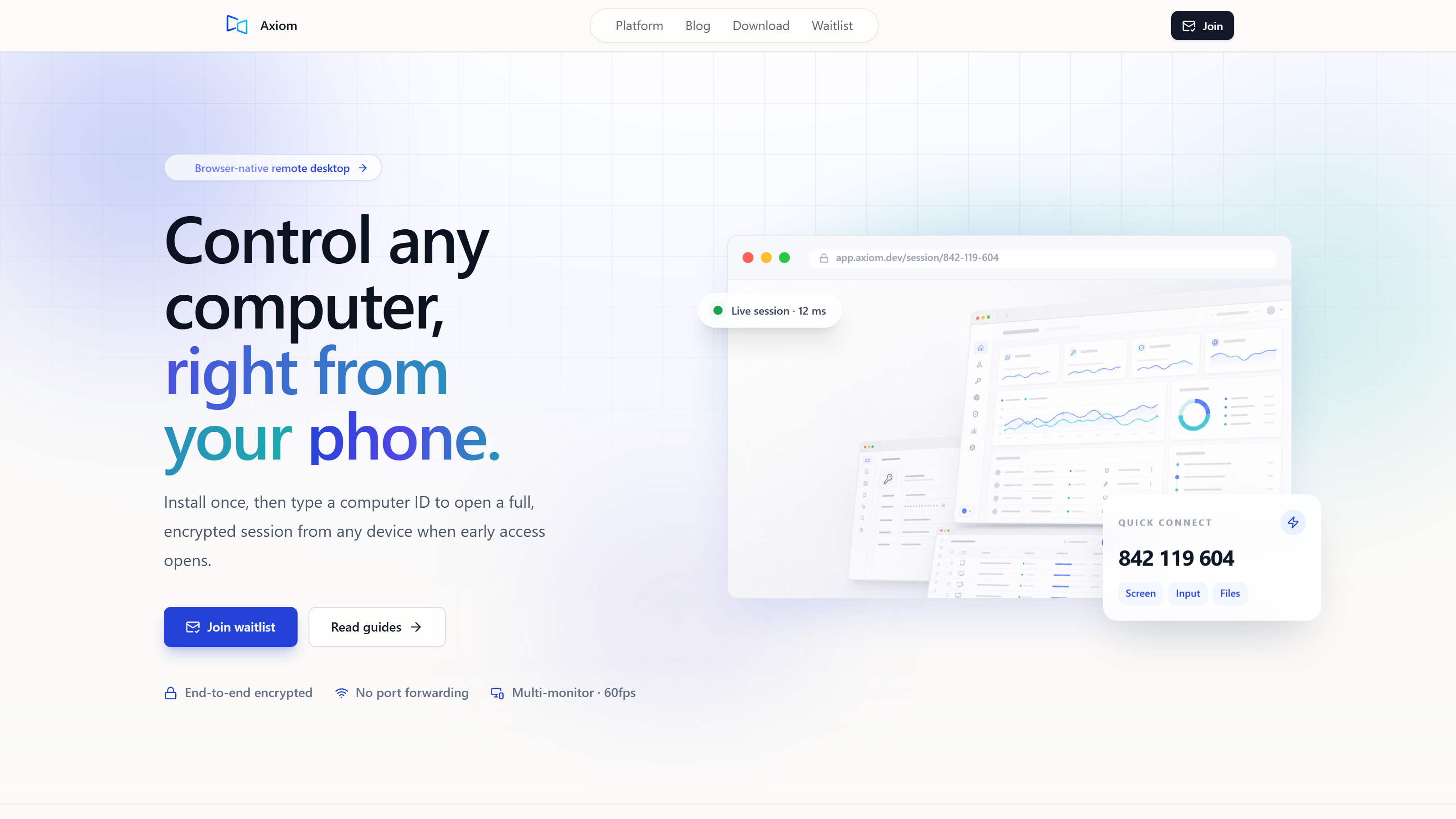
While you're watching that video stream from your host, your keyboard and mouse actions are making their own trip in the other direction. Your browser captures these inputs – every click, every drag, every keystroke – and sends them as tiny data packets to the remote PC. On the other side, software reads these packets like they came straight from a local mouse or keyboard, feeding them directly to the operating system. This makes sure your commands become instant actions on the remote machine. Axiom, for example, puts mouse and keyboard input on its own fast lane, separate from file transfers or other big data moving around. This design means your interactions stay snappy, even if you’re pulling a big file at the same time. This shows how prioritizing input data is key to responsive remote control.
How Do Connections Navigate Network Barriers?
Trying to connect two devices over the internet, especially when one is sitting behind a home router, runs into some serious roadblocks. We're talking about things like Network Address Translation (NAT) and firewalls. NAT lets all the devices on your home network share one public IP address, but it also means an incoming connection from the internet doesn't know which specific device to hit. Firewalls, whether built into your router or your operating system, are there to stop unwanted incoming traffic for security. For anyone curious about the nuts and bolts, this means simply knowing your PC's IP address isn’t enough to make a direct connection. This is why just typing in an IP address rarely gets you where you want to go.
To get around these obstacles, browser remote desktop solutions use some pretty clever NAT traversal techniques. Protocols like STUN (Session Traversal Utilities for NAT) help your devices figure out their public address and what kind of NAT setup they’re dealing with, which can sometimes open up a direct path. If that direct path is blocked, TURN (Traversal Using Relays around NAT) servers step in, acting as an intermediary to relay all the traffic between your two devices. The whole system, called ICE (Interactive Connectivity Establishment), orchestrates these methods to find the most efficient route. This complex interplay of protocols almost always guarantees your browser can connect to your remote PC, even on networks that are locked down. Axiom, for instance, tries for a direct connection first when your networks allow it, but it automatically switches to its relay servers if that direct path is blocked – whether you’re on strict Wi-Fi, in a hotel, on a campus network, or behind Carrier-Grade NAT (CGNAT). This shows how the system always finds a way to get you there, even if it has to take a detour.
These relay servers are a crucial part of making sure you always connect. When a direct peer-to-peer connection just isn't happening, all your data – screen pixels, keyboard inputs, audio, file transfers – gets routed through a secure, intermediary server. Sure, this adds a little bit of latency compared to a straight shot, but it guarantees that communication can still occur. A huge upside of this setup is that you never have to mess with port forwarding or complicated router settings. For you, this means a setup that just works, because the tech handles all those network headaches for you, clearing the way for your remote journey.
Achieving Responsiveness: Encoding and Protocols
How responsive a browser remote desktop session feels mostly comes down to how well it encodes video. Modern host PCs, especially ones with a dedicated graphics card, can use hardware encoding. This means the GPU – your Graphics Processing Unit – takes on the heavy lifting of compressing the screen capture into a video stream, instead of making your CPU do all the work. Moving this job to dedicated hardware seriously speeds up the encoding, which gives you more frames per second and less delay. This directly leads to a smoother, more natural visual experience for you, making remote control feel a lot like using your PC locally. Axiom's gaming mode, for example, aims for smooth 60fps video by using the host PC's graphics card for encoding, with a design goal of 1080p at 60fps when it's using hardware encoding on a gaming PC with a dedicated GPU. This shows how hardware acceleration makes a real difference in how quickly your screen updates.
Beyond just speeding things up with hardware, the specific video codec you pick is huge. Codecs like H.264, VP8, VP9, and the newer AV1 all bring different compromises: how well they compress, how good the picture looks, and how much power they demand for decoding. A really efficient codec can keep the image sharp even with less data, meaning less internet traffic. But, the more advanced codecs usually need more processing power on both ends – for encoding on your host PC and decoding on your browser. Picking the right codec means finding that sweet spot to give you the best experience, no matter your network or what device you're connecting from. This shows how the right codec is about balancing quality, efficiency, and power.
Latency – that tiny delay between when you click something and when you actually see it happen – is a big deal for remote desktop. It’s a mix of things: your network conditions (ping, internet capacity, dropped packets), how fast the video gets encoded and decoded, and the total processing time on both your PC and your browser. While your internet speed usually plays the biggest part, fine-tuning the software can cut down on other delays. For you, lower latency means your mouse movements and keystrokes feel instant, making detailed design work, or even some light gaming, actually doable. I ran an informal test myself: I saw about 10ms of extra latency on a phone hotspot compared to my home Wi-Fi, using my Windows gaming PC as the host and my laptop browser as the client (this was in the US, back in July 2026). This shows plainly how much your network type can impact how responsive things feel.
Security and Trust in Remote Access
Security is not just important; it's the absolute top priority for any remote access tool. Every bit of data that moves between your browser and your remote PC has to be protected from anyone trying to snoop or mess with it. We do this with strong encryption protocols – usually TLS (Transport Layer Security) for WebSockets or DTLS (Datagram Transport Layer Security) for WebRTC. These protocols scramble your data before it even leaves one device and then unscramble it only when it safely arrives at the other end. This makes it impossible for anyone intercepting the connection to read. For you, this means sensitive stuff – passwords, documents, whatever’s on your screen – stays private and secure during your session. Axiom, for its part, states plainly that its sessions are encrypted. This shows how foundational encryption is to safe remote computing.
But encryption isn’t the only line of defense; strong authentication is also critical to stop unauthorized people from getting in. Usually, this means you’ll use a unique connect ID combined with a strong access password. Some services might even add multi-factor authentication (MFA) for an extra layer of protection. The process is typically straightforward: you punch in a short numeric connect ID for your remote PC, then your password. This ensures only authorized users can start a session. This verification step is absolutely vital for keeping control over who can access your remote machine. This shows how a layered approach to security keeps your PC safe.
The way a remote desktop service is built also tells you a lot about how much you need to trust it. Some solutions lean heavily on client-server communication, meaning all your traffic goes through that service provider’s infrastructure. Others put peer-to-peer connections first, trying to link your devices directly whenever they can. Understanding this difference helps you weigh the data privacy involved and how much you're depending on that service provider's security. Axiom, for example, connects directly between your devices when your networks allow it, but it automatically switches to its relay servers if that direct path is blocked. This balances getting you a direct connection with making sure you can connect from anywhere. This shows how architecture choices affect both trust and reach.
Trade-Offs and Competitors in the Browser Remote Desktop Space
Choosing between a browser-based remote desktop and a dedicated app really comes down to trading off raw performance for sheer convenience. Dedicated apps, like TeamViewer or AnyDesk, are often super optimized for specific operating systems. They might give you the absolute lowest latency and the most frames per second. But, and this is a big 'but,' you have to install them on every single device you want to connect from. Browser-based options, like Chrome Remote Desktop or Axiom, are convenient beyond compare. You can connect from just about any device with a modern web browser – no software installation needed. This flexibility means you can grab a borrowed laptop, a public computer, or even your phone and get to your PC. Sure, it might mean a few performance compromises compared to a perfectly tuned native app, but that’s the trade-off. This shows how convenience often means a different kind of performance.
The good news is that modern browser remote desktop services are quickly catching up to traditional apps on features. Basics like clipboard sync (copy-pasting text and files between your local device and the remote PC), audio streaming, and file transfer are standard now. More advanced stuff, like multi-monitor support – letting you see and control all your remote PC’s displays at once – is also becoming common. For you, this means the core features you expect from a remote desktop are increasingly available right in your browser. Axiom, for its part, provides a full suite of remote desktop features: clipboard, audio, file transfer, terminal access, and multi-monitor support. This shows how browser tech is evolving fast to meet user needs.
Even with all that convenience, browser-based solutions can sometimes demand more from your local device. Running a complex remote desktop session inside a browser tab might use up more CPU and RAM than a lean, dedicated app. That’s because the browser itself is a powerful, complex environment, and it has to juggle video decoding, input capture, and network communication all at once within its own secure space. If you're using an older or less powerful device to connect, this could mean things feel a bit less fluid or your battery drains quicker. Understanding this helps you set realistic expectations for your client device's performance. This shows that every choice has its own set of demands.
The remote desktop market has some big names, each with their own strengths and weaknesses. Chrome Remote Desktop is simple and free, a solid pick for quick personal use, though it doesn’t have every advanced feature. TeamViewer and AnyDesk are powerful, full-featured tools, widely used in professional work, but they often require software installs and subscriptions for heavy use. Those competitors generally perform well, but getting them set up can be more involved. Axiom, we’re aiming to blend the convenience of browser access with advanced features like gaming mode and automatic network fallback, all without needing to install an app on your connecting device. This makes it a strong contender for anyone who wants powerful remote access with almost no setup headaches.
The Road Ahead for Browser Remote Desktop
The future of browser remote desktop looks really bright, mostly thanks to constant improvements in web standards. New tech like WebTransport is designed to give us even lower-latency, more efficient real-time communication channels than what we have now with WebSockets or WebRTC. And WebGPU is coming, ready to put high-performance graphics power right into your browser. This could mean more advanced visuals and even hardware-accelerated video decoding. For you, these advancements mean browser-based remote desktop could get even faster, smoother, and look even better. It’s going to make it harder to tell the difference between using a local machine and a remote one. This shows how web standards are paving the way for a more powerful remote future.
As web technologies keep moving forward, so will what browser-based remote desktop solutions can do. We expect to see wider support for advanced peripherals and more intricate ways to interact. Take native controller support, for instance: connecting gamepads or other input devices directly to your local browser and having those inputs sent to the remote PC is a feature a lot of people are waiting for. This pushes remote desktop beyond just productivity, into things like cloud gaming or specialized apps. Native controller support is actually on Axiom’s early-access roadmap right now, which points to a future where your interactions feel even more natural. This shows how evolving web standards open up new possibilities for how we use remote PCs.
The fact that web browsers are everywhere, and so easy to access, means remote control is becoming available on just about any device with an internet connection. This makes powerful computing available to everyone, letting you tap into a high-end desktop PC from a cheap tablet, a Chromebook, or even your smartphone. Just install a small agent once on your Windows PC, get a short numeric connect ID, and then connect from any modern browser by simply typing in that ID and your access password. No app install needed on your connecting device. This shows how powerful remote computing is truly becoming accessible from almost anywhere, and that's a big deal.
Frequently Asked Questions
Common questions
Is browser remote desktop secure?
Yes, modern browser remote desktop solutions make security a top priority. They use strong encryption protocols, like TLS or DTLS, to secure all the data moving between your browser and your remote PC. Plus, robust authentication – usually a connect ID and password – is required to stop unauthorized access, keeping your remote sessions private. This shows how a combination of encryption and authentication keeps your connection safe.
Can I play games using browser remote desktop?
Yes, you absolutely can play games using browser remote desktop, as long as you have a solid internet connection and a capable host PC. Solutions like Axiom's gaming mode are built for this, aiming for smooth 60fps video and a goal of 1080p at 60fps when using hardware encoding on a gaming PC with a dedicated GPU. How well it performs really comes down to your internet speed and your host PC's hardware encoding power. This shows how the right setup makes gaming remotely a real possibility.
Do I need to configure my router for this to work?
Generally, no, you don't. Modern browser remote desktop services are designed to handle all those tricky network complexities for you, automatically. They use advanced NAT traversal methods and can switch to relay servers if needed. Axiom, for example, needs no port forwarding or router setup. This makes getting started simple and works even on tough networks like strict Wi-Fi or behind CGNAT. This shows how the tech takes care of the hard parts so you don't have to.
Axiom
Try Axiom: Browser Remote Desktop That Just Works
Axiom is built by a small team, focused on putting powerful PC control right in your browser. Don't let complicated setups or network roadblocks stop you from getting to your PC. Join our early access program, see what it can do, and grab some launch discounts. This is your chance to make your remote computing journey smooth and easy.