
Is Tailscale Good for Remote Desktop? What DERP Means for RDP
Is Tailscale actually good for remote desktop, or is it just a clever way to avoid port forwarding? For the most part it's genuinely good, as long as you understand what it is and what it isn't. Tailscale puts your laptop and your Windows PC on the same private network, gives the PC a stable 100.x address, and lets you point Microsoft's Remote Desktop client at it without opening a single port on your router. When Tailscale manages a direct connection between the two devices, RDP feels about as good as your internet allows. When it can't, your session quietly gets routed through one of Tailscale's DERP relay servers, and that's where the complaints about laggy text and stuttery scrolling usually come from. Tailscale also doesn't add a Remote Desktop server to Windows, so a Home edition PC still has nothing for RDP to connect to. That's why the real question isn't whether Tailscale works for remote desktop, it's which path your session is taking and whether your PC can host RDP at all.
How does RDP over Tailscale actually work?
The setup is simpler than most people expect. Tailscale's own guide for Windows RDP has you install Tailscale on both devices, sign in with the same account, turn on Remote Desktop in the PC's settings, and then connect from your RDP app using the PC's 100.x Tailscale IP or its MagicDNS name. Tailscale says this lets you reach the machine "without manual port forwarding or public IPs." This shows how Tailscale is really solving the networking half of the problem, getting packets from your laptop to your PC, while RDP is still the thing drawing the screen and sending your clicks.
That split matters more than it sounds. If the session is ugly, the fix is either in the network path or in RDP itself, and those are two completely different places to look. A lot of people tweak RDP display settings for an hour when the real issue is that Tailscale never got a direct connection in the first place.
One more thing from that guide is worth doing if the PC lives at home and you're often away. Tailscale recommends turning on unattended mode so the PC stays on your network after a reboot, even before anyone logs in. Without it, a Windows update overnight can leave you staring at a machine that just isn't there anymore.
Why does RDP over Tailscale feel slow sometimes?
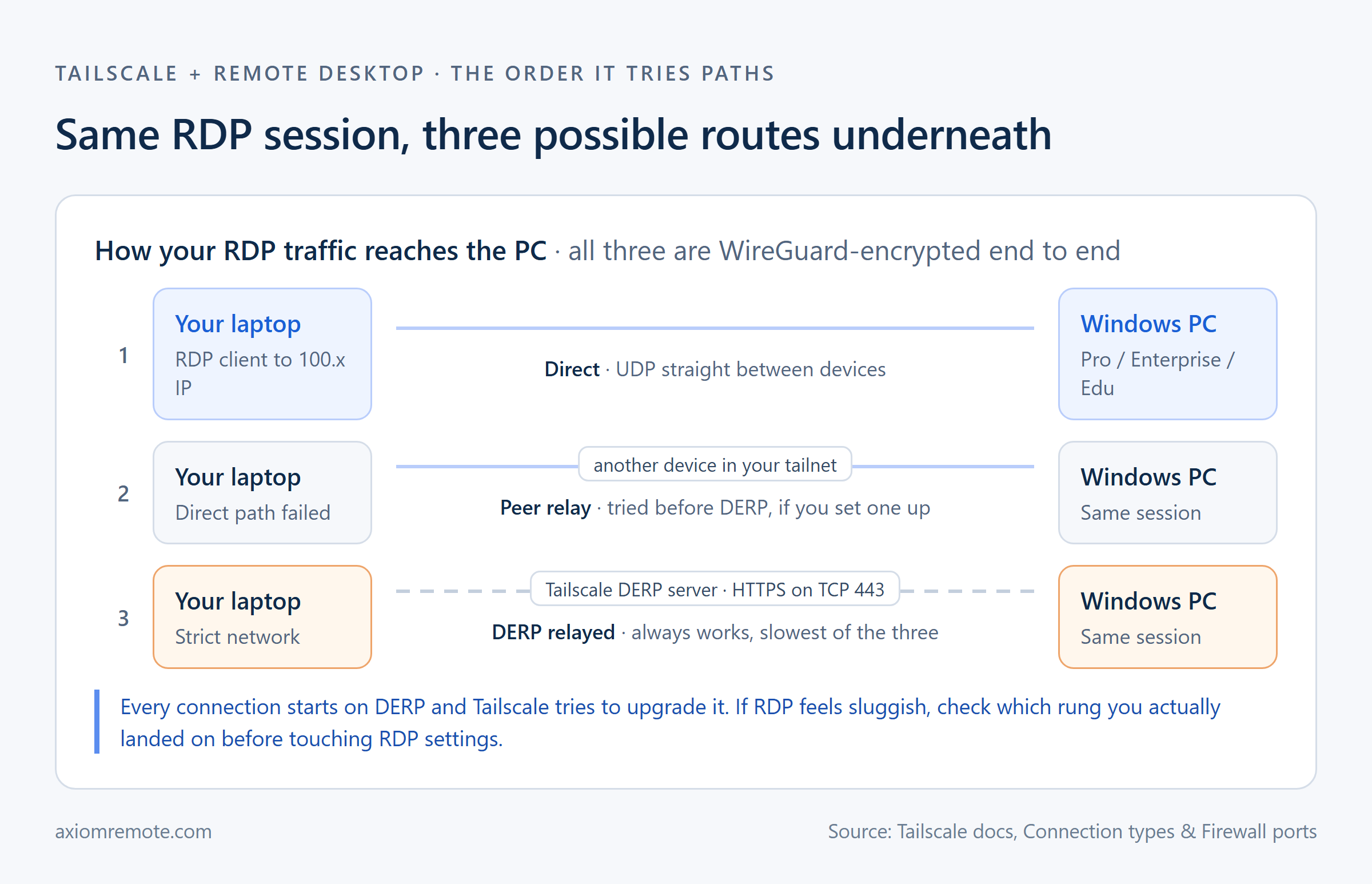
Tailscale's docs describe three ways your traffic can travel. The best one is a direct connection, where the two devices send UDP packets straight to each other. If that fails, Tailscale can use a peer relay, which is another device in your own network passing traffic along. And if neither works, it falls back to a DERP relay, one of Tailscale's own servers. The docs say DERP servers "are reliable but have limited quality of service" and are generally slower than direct connections with lower maximum throughput. This is a clear example of why the same setup can feel crisp one day and mushy the next, because nothing about RDP changed, only the road underneath it did.
The detail I find most useful is that every connection starts on DERP and then Tailscale tries to upgrade it to something better. That's how it's able to connect almost anywhere, since DERP runs over HTTPS on TCP port 443 according to Tailscale's firewall page, which is about the last thing any network blocks. But it also means a session that never manages that upgrade just stays on the slow path, and you won't get a warning about it inside the RDP window.
Tailscale is honest about this too. Their connection types page calls using a relay when a direct connection was possible one of the most common causes of performance problems. So when people say Tailscale is slow for remote desktop, what they usually mean is that they got stuck on DERP.
How can you tell if Tailscale is using a relay?
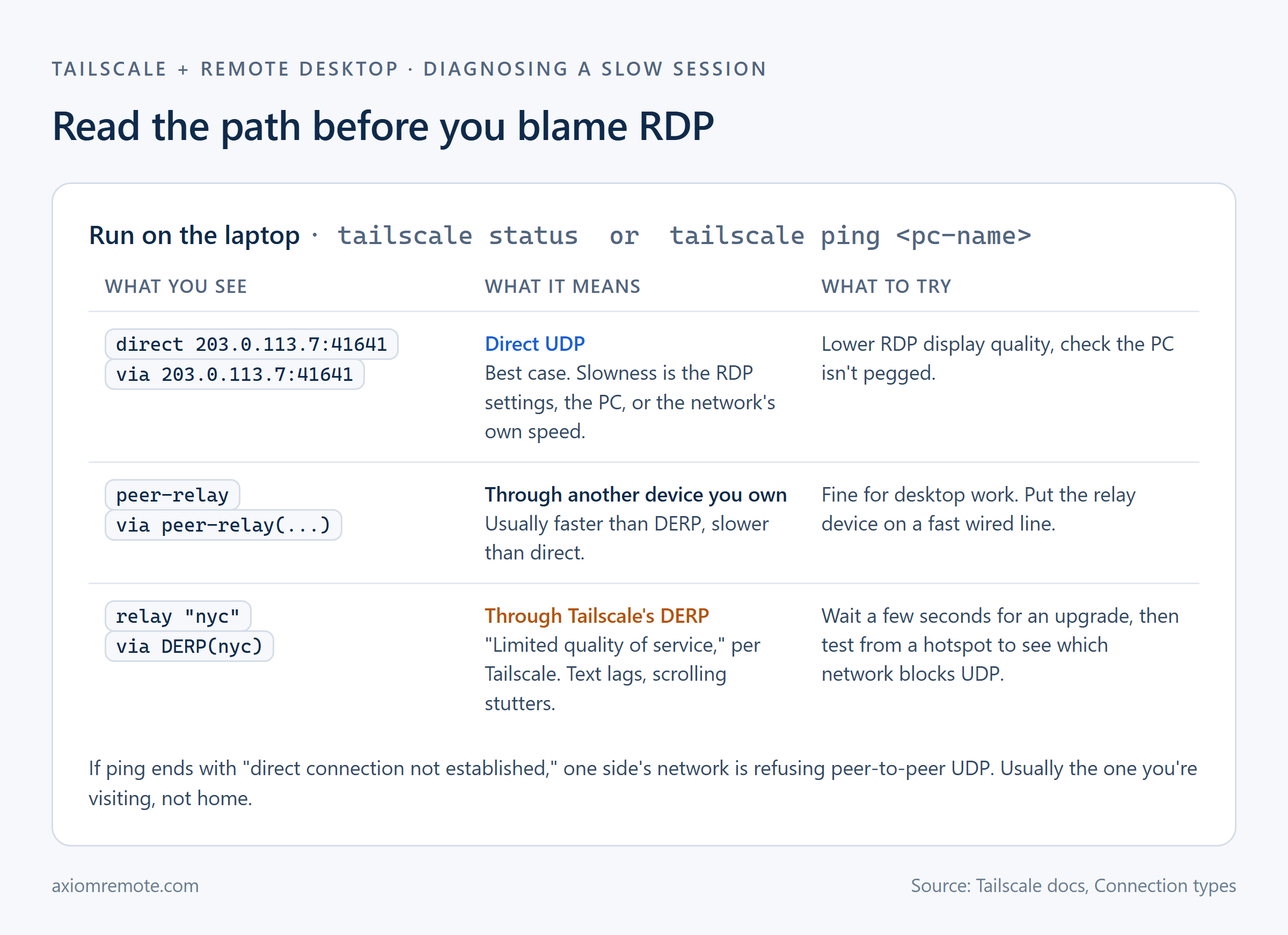
You don't have to guess. Running tailscale status on your laptop shows each device with either "direct" and an address, "relay" and a DERP region name, or "peer-relay." Running tailscale ping with your PC's name is even better, because each reply tells you which path it took, and if it finishes with "direct connection not established" then you have your answer. This shows how one command can save you from blaming RDP, your graphics card, or your internet plan for something that's really a network policy somewhere in the middle.
If you're on DERP, give it a few seconds first, since early pings often go through DERP while the direct connection is still being worked out. If it never upgrades, switch your laptop to a phone hotspot and try again. When the hotspot gets a direct connection and the hotel or office Wi-Fi doesn't, you've proven the network you're visiting is blocking peer-to-peer UDP, and no setting on your PC is going to change that.
In my experience the home side is rarely the problem unless you're behind carrier-grade NAT, but it's worth checking both ends. If the PC itself is behind CGNAT and the network you're on is strict too, the two sides basically have no way to meet without a relay, and that's when a peer relay on a fast machine you own starts to make a lot of sense.
Does Tailscale work for remote desktop on Windows Home?
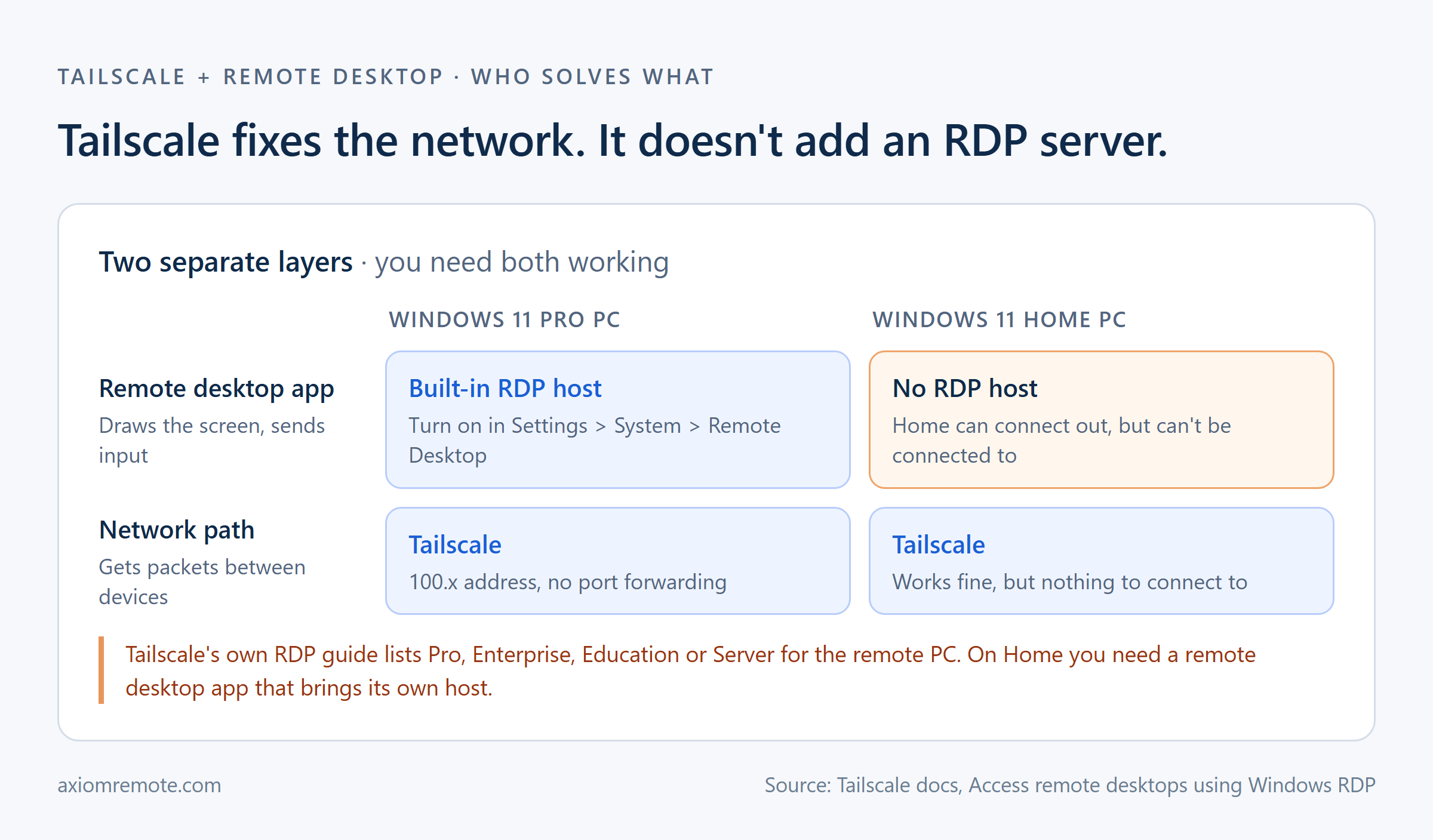
This is the part that catches a lot of people off guard. Tailscale's RDP guide lists the remote PC requirement as Windows Professional, Enterprise, Education, or Server, and Home isn't on that list. Tailscale will happily install on a Home PC and give it a 100.x address, but Windows Home doesn't include the Remote Desktop host, so there's nothing listening on the other end when your RDP client knocks. We went through the edition limits in more detail in our post on remote desktop for Windows 11 Home.
So on Home you have two real choices. You can pay to upgrade the PC to Pro and then use Tailscale plus RDP exactly as described above, or you can use a remote desktop app that brings its own host software and doesn't depend on the built-in RDP server at all. Either way, Tailscale by itself doesn't fix it, since it was never the missing piece.
When is Tailscale the wrong tool for remote desktop?
Even though Tailscale is excellent at what it does, it's still a network you have to run. Every device you connect from needs the Tailscale client installed and signed in, which is fine for your own laptop but a real problem on a work computer you aren't allowed to install software on, a library PC, or a friend's machine. The whole model assumes you control both ends.
It's also two products stacked on top of each other, which means two things to keep updated and two things that can break. When something goes wrong you're troubleshooting Tailscale's path and RDP's session separately, and the person on the other end usually can't tell which one failed. For a technical person reaching their own PC that's more than worth it. For helping a parent or reaching your PC from a borrowed laptop, it's definitely more setup than the job needs.
That's the gap remote desktop tools with their own relays are built for. They try a direct connection first, fall back to a relay when the network blocks it, and keep the whole thing inside one app instead of a VPN plus a separate RDP client. If that's the situation you're in, we wrote up how that approach handles remote desktop without port forwarding and when it beats a VPN-style setup. Tailscale is a great tool, it's just a networking tool first, and remote desktop is the thing you build on top of it.
Common questions
Can you use RDP over Tailscale without port forwarding?
Yes. Install Tailscale on both devices, sign in with the same account, turn on Remote Desktop on the Windows PC, and connect your RDP client to the PC's 100.x Tailscale IP or MagicDNS name. Tailscale handles the connection between networks, so no router ports need to be opened.
Why is Remote Desktop slow over Tailscale?
Usually because the session is going through a DERP relay instead of a direct connection. Tailscale says DERP servers have limited quality of service and are generally slower than direct paths. Run tailscale status or tailscale ping to check the path, and test from a phone hotspot to find which network is blocking direct UDP.
Does Tailscale make RDP work on Windows 11 Home?
No. Tailscale only provides the network path. Windows Home does not include the Remote Desktop host, and Tailscale's own RDP guide lists Pro, Enterprise, Education or Server for the remote PC. On Home you need to upgrade to Pro or use a remote desktop app with its own host software.
Axiom
Remote desktop without a VPN layer to manage
Axiom lets you reach your Windows PC from any modern browser with a short connect ID and password, no port forwarding and no client install on the device you're borrowing. It connects directly when the network allows and falls back to our relay servers on strict Wi-Fi, hotels, campuses and CGNAT. Axiom is in invite-only early access right now, so join the waitlist to get in.