
Why Doesn't Steam Remote Play Work Away From Home?
Why does Steam Remote Play work perfectly on the couch and then fall apart the second you take your laptop to a hotel or a dorm? Most of the time it isn't your PC, your graphics card, or your settings, it's the network you're sitting on. Valve's own support page says Remote Play is not supported on public networks, workplace or school networks, guest networks, networks with login portals, or anything with client isolation turned on, which is pretty much every network you'll find away from home. At home the two devices find each other on the same subnet with almost no setup, but away from home the stream has to cross networks that decide for themselves what traffic gets through, and Steam's streaming ports usually aren't on the list. So before you reinstall drivers for the third time, the thing to figure out is which network is blocking you and whether you have any control over it.
Why does Steam Remote Play work at home but not away from home?
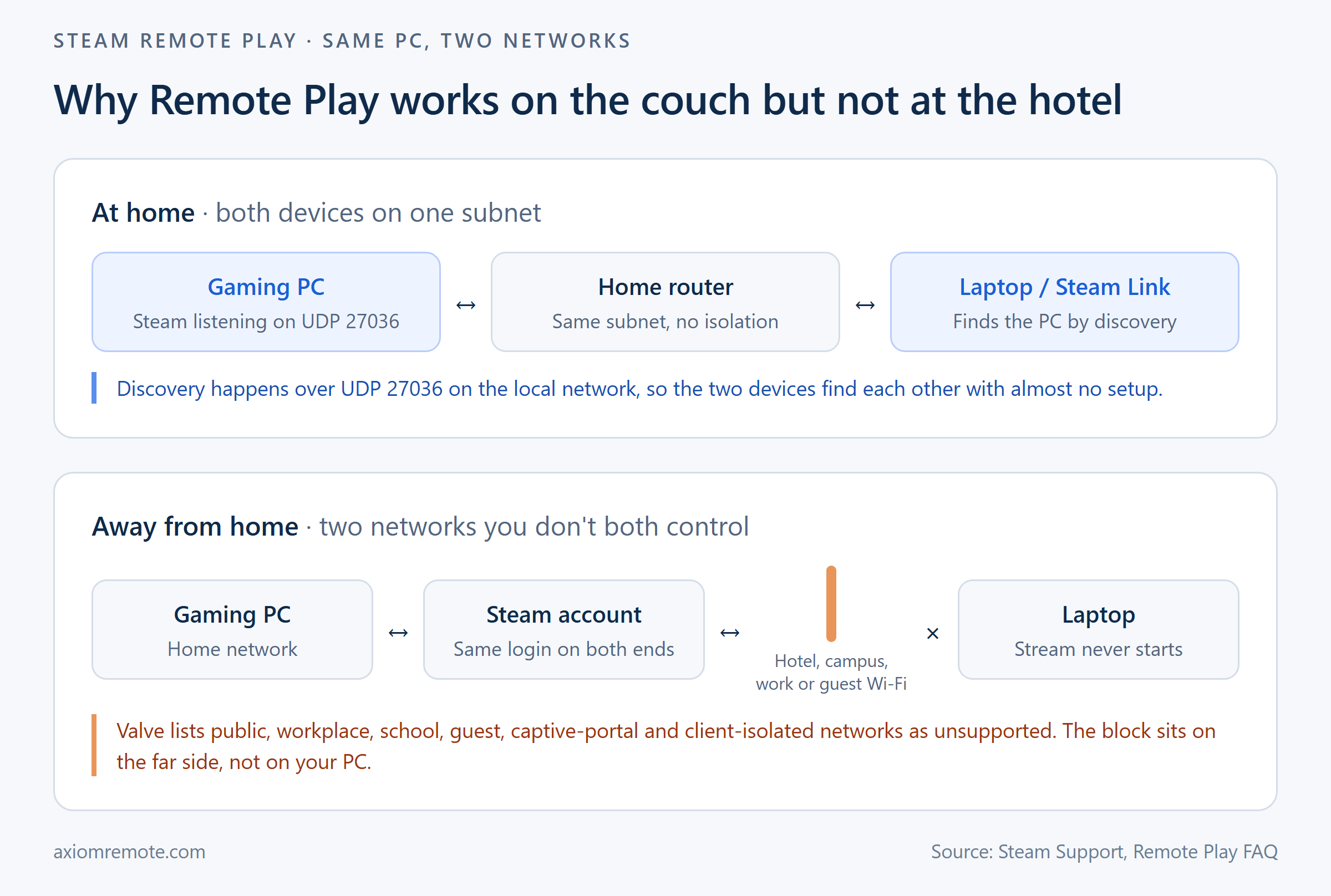
At home, Remote Play almost feels like magic. You log into Steam on your gaming PC, log into Steam on a laptop or the Steam Link app, and the game just shows up with a Stream button instead of a Play button. The reason it's so easy is that both devices are on the same local network. Valve's Remote Play FAQ explains that the computers have to be on the same subnet and that UDP port 27036 is "used for the initial discovery protocol." This shows how a lot of the easy part of Remote Play depends on your two devices sitting behind the same router, where they can basically shout across the room at each other.
Away from home that whole setup goes away. Your gaming PC is still on your home network, but your laptop is now on somebody else's network, and Steam has to rely on your account to connect the two instead of local discovery. Valve's instructions for Remote Play Anywhere are simple on paper, since you just log into the same Steam account on both ends and stream from your library. But the stream still has to physically get from one network to the other, and that's where things break, because the network in the middle gets a vote and it usually votes no.
This is why the same PC can work flawlessly at night in your living room and refuse to connect the next morning from a hotel. Nothing about the PC changed. The path between the two devices did, and that's the part you have to troubleshoot.
Which networks does Valve say Remote Play won't work on?
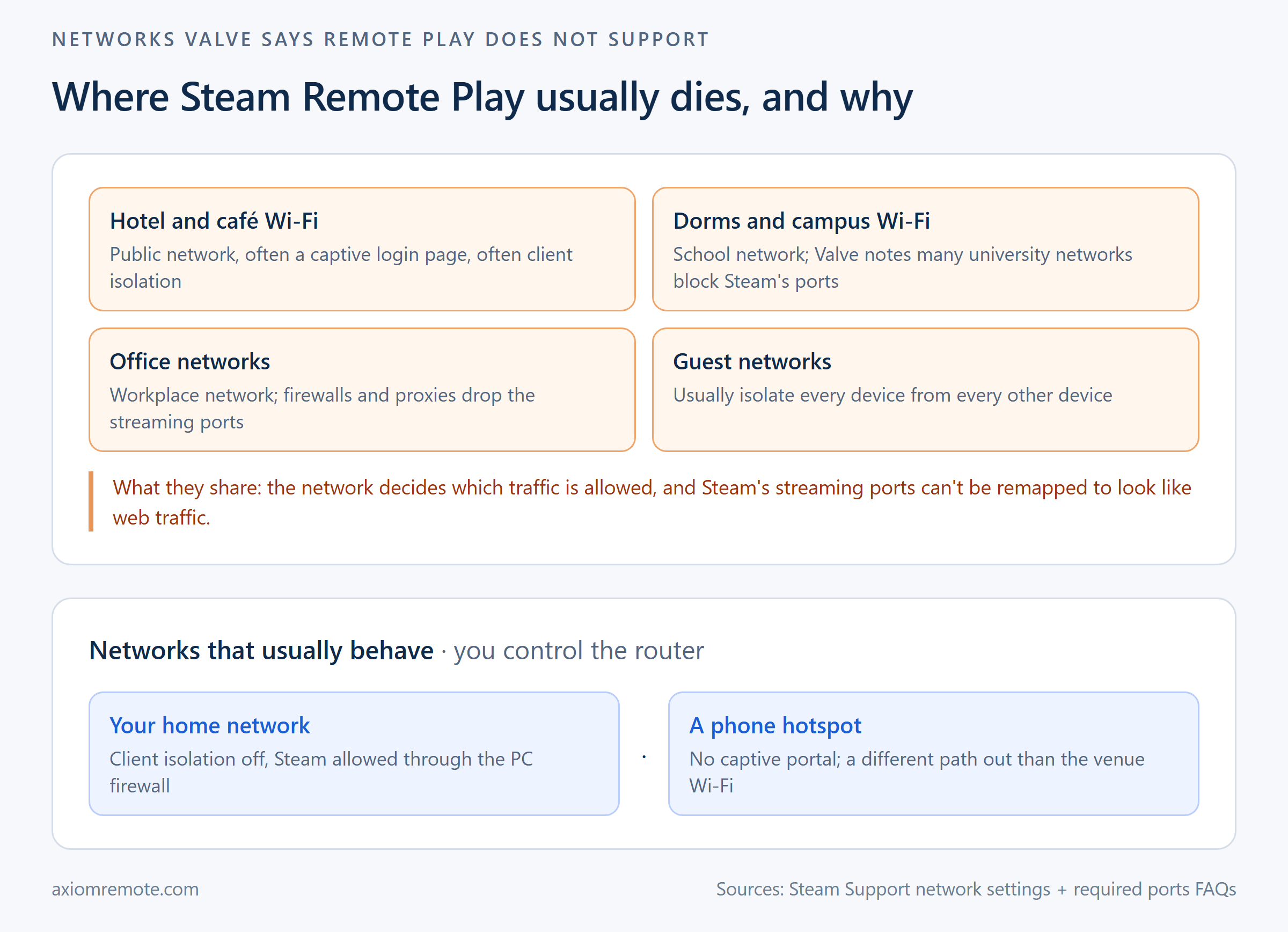
Valve is actually pretty blunt about this, which I appreciate. Their Steam Link network settings page says Remote Play "is not supported on public networks, workplace or school/university networks, guest networks," and it goes on to add networks with gateway portals or log-ins and anything with access point or client isolation enabled. It also says these networks "will prevent you from connecting in most cases." This is a clear example of the problem living outside your house, because that list is basically every network a person uses when they travel, study, or work.
Each one fails for a slightly different reason. Hotel and coffee shop Wi-Fi usually puts you behind a captive login page and often isolates every device from every other device. Dorm and campus networks are managed by an IT department that blocks a lot of ports by default, and Valve's own Required Ports page warns that many university and business networks block the ports Steam needs. Guest networks almost always have client isolation turned on, which is the setting that stops two devices on the same Wi-Fi from talking to each other at all. We dug into how that setting works in our post on Wi-Fi client isolation, and it explains a lot of the "it can't even see my PC" errors people run into.
The good news is that the list also tells you what does tend to work. Your own home network, where you control the router, and a phone hotspot, which has no login page and gives you a different way out than the venue's Wi-Fi, are the two places Remote Play is most likely to behave.
What ports does Steam Remote Play need?
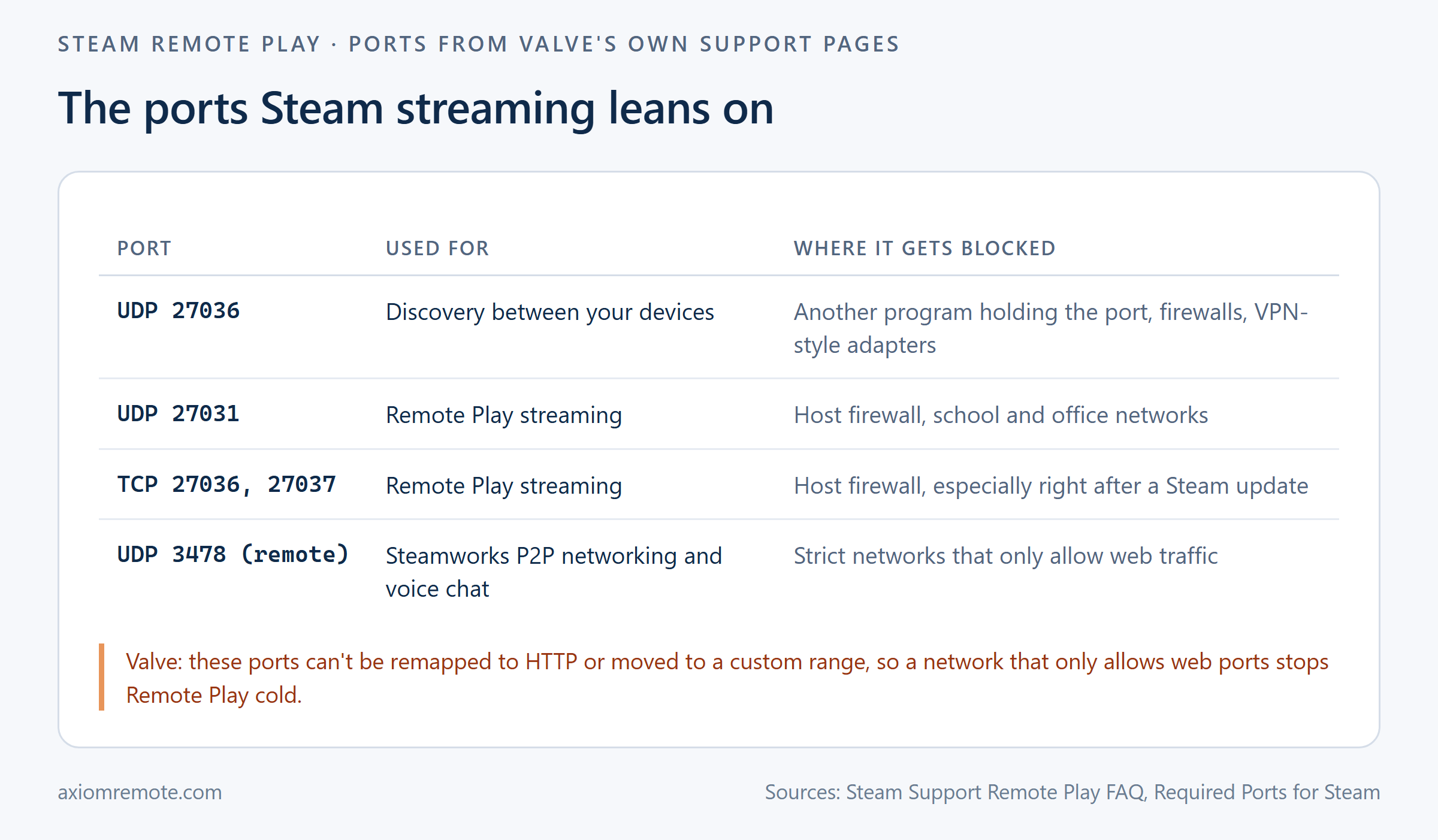
According to Valve, Remote Play uses UDP ports 27031 and 27036 and TCP ports 27036 and 27037, and Steam has to be allowed to listen on those ports in the host PC's firewall. VR streaming adds UDP 10400 and 10401 on top of that. The Required Ports page also lists UDP 3478 and a few others for Steam's peer-to-peer networking and voice chat. None of these are ports a strict network has any reason to leave open, since they don't look like normal web browsing.
The part that really matters is a single line on that same Required Ports page, which says ports required for Steam "can not be re-mapped to HTTP or reconfigured to a custom port range." This shows how there's no clever workaround on the Steam side when a network only lets web traffic through. You can't tell Steam to pretend it's a website, so if a school or office firewall only allows the usual web ports, Remote Play is stuck no matter how good your PC or your connection is.
One more thing worth knowing is that the firewall that breaks things isn't always far away. Valve notes that if Steam or your game updated recently, your own firewall may be blocking network access even if it worked fine before. So if Remote Play suddenly stopped working at home too, check the Windows firewall on the gaming PC before you blame the hotel.
What can you actually fix when Remote Play won't connect?
Start with the things you control, because they're quick. Make sure Steam is up to date on both devices, launch the game once on the host PC so it's not stuck on an update, and confirm that Steam is allowed through the host firewall. Valve's FAQ also points out that another program holding UDP 27036 will stop the computers from seeing each other, and that tools like Hamachi and custom firewalls have been reported to get in the way of discovery. If any of those are on your PC, that's more than enough reason to test with them turned off.
If everything on your end checks out and you're still on hotel or campus Wi-Fi, the fastest honest test is to switch networks. Tether your laptop to your phone's hotspot and try again. If it connects on the hotspot and not on the venue Wi-Fi, you've proven the venue is the problem, and no setting on your PC is going to change that. It's not a permanent fix though, since streaming a game eats through mobile data fast and the quality depends on your signal.
When the network you're stuck on just won't allow it, the only real option is a tool that doesn't depend on those ports. Remote access tools built for travel usually start with a direct connection like Steam does, but fall back to routing the stream through a relay server over ports that strict networks already allow. That's the approach we took for playing your gaming PC from anywhere, and it's the difference between a stream that only works at home and one that works from a dorm room.
Common questions
Can Steam Remote Play work outside your home network?
Yes. Remote Play Anywhere lets you log into the same Steam account on your gaming PC and another device and stream from your library. It usually works on networks you control, like your home Wi-Fi or a phone hotspot, but Valve says public, school, workplace, guest and client-isolated networks are not supported.
What ports does Steam Remote Play use?
Valve lists UDP ports 27031 and 27036 and TCP ports 27036 and 27037 for Remote Play, plus UDP 10400 and 10401 for VR streaming. Steam must be allowed to listen on them in the host PC's firewall, and Valve says the ports cannot be remapped to HTTP or a custom range.
Why can't Steam Remote Play find my computer?
Discovery uses UDP port 27036, so the devices need to be on the same subnet with nothing else holding that port. Client isolation on guest or public Wi-Fi, custom firewalls, or tools like Hamachi can block it. Away from home, log into the same Steam account on both devices instead of relying on discovery.
Axiom
Play your gaming PC from Wi-Fi that blocks Steam
Axiom streams your Windows gaming PC to any modern browser with no port forwarding, connects directly when the network allows it, and falls back to our relay servers on strict hotel, campus and CGNAT networks. Gaming mode uses your PC's graphics card for encoding. Axiom is in invite-only early access right now, so join the waitlist to get in.