Remote Desktop on Windows 11 Home: What Works Instead
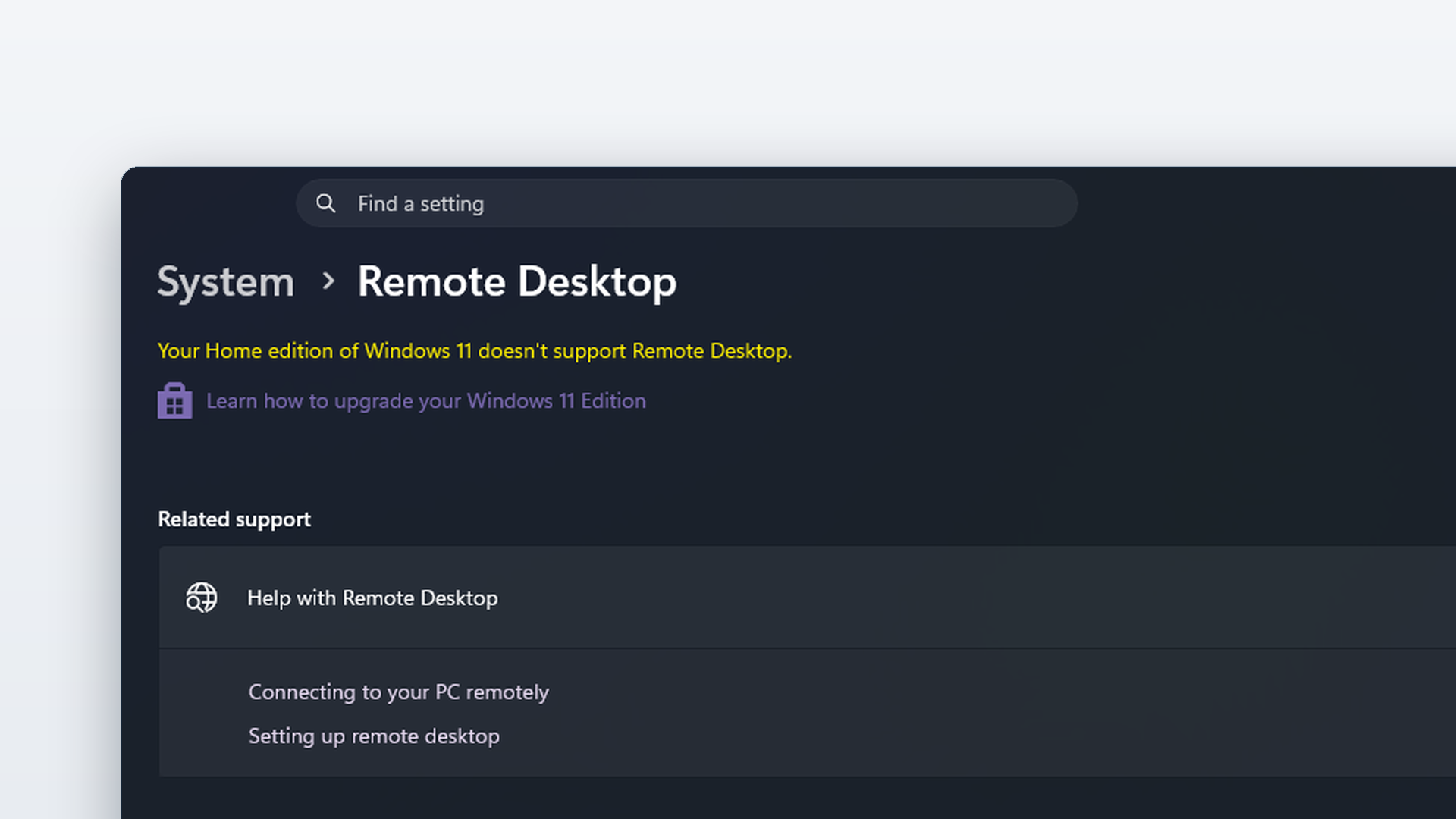
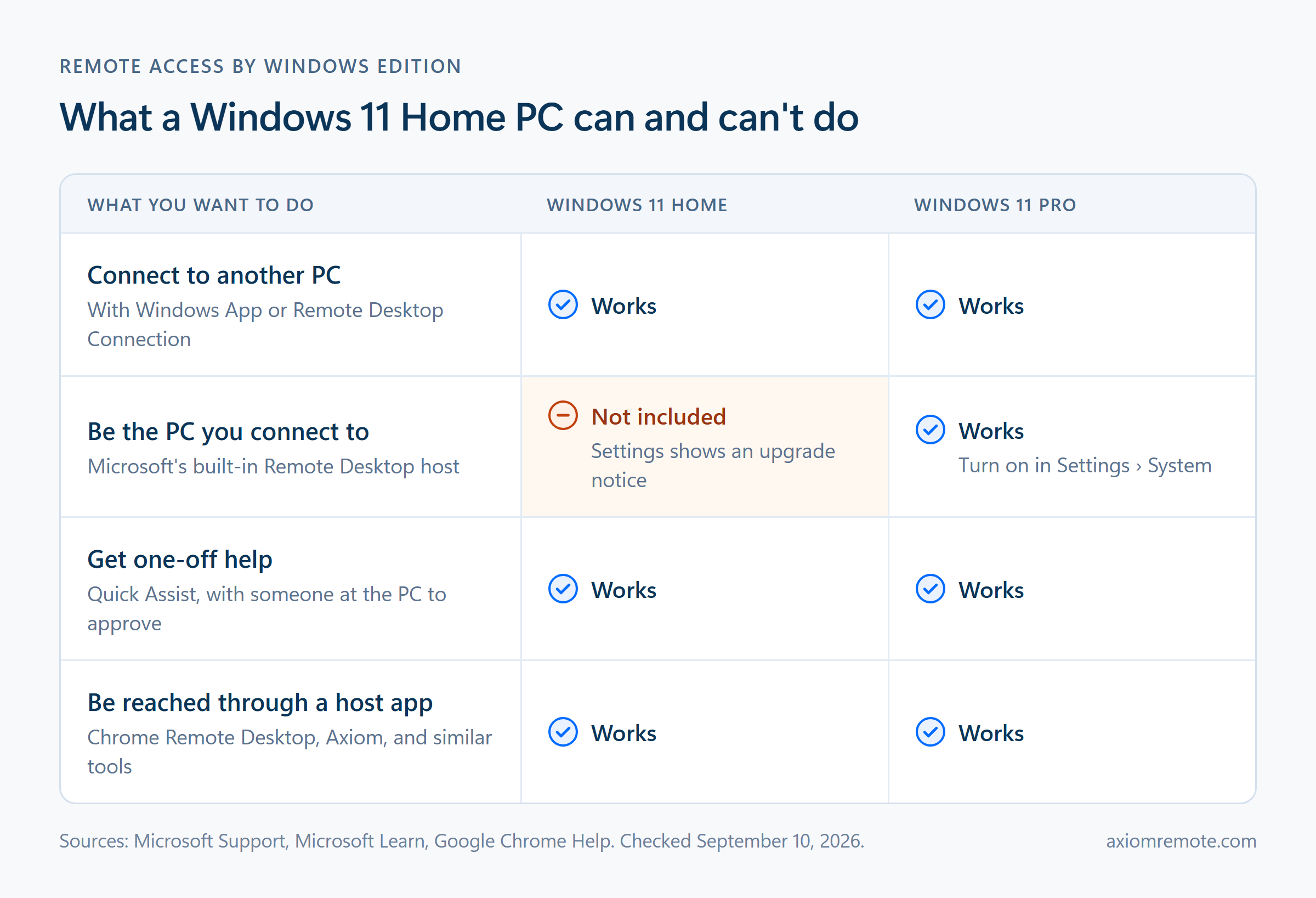
Can you use Remote Desktop on Windows 11 Home? Only halfway. A Home PC can use Microsoft's Remote Desktop apps to connect to another computer, but it can't be the computer you connect to. Microsoft reserves that job for Pro and Enterprise editions, and Settings says so plainly: "Your Home edition of Windows 11 doesn't support Remote Desktop." That leaves two real fixes. Upgrade the PC you want to reach to Pro, or install a remote-access app that brings its own host. The desktop I test Axiom on runs Windows 11 Home, so I've stared at that message more than once. Here's how to pick the right fix without making your PC easier to break into.
Why doesn't Windows 11 Home support Remote Desktop?
Think of Remote Desktop as two pieces: a client that reaches out, and a host that lets someone in. Windows 11 Home gets the first piece and not the second. Microsoft's own Remote Desktop guide says the PC you connect to must run Windows Pro, while the device you connect from can run any edition, Home included, or a different operating system altogether. Microsoft Learn's supported-configuration list names the hosts that work, Windows 11 Pro and Enterprise among them, and says editions left off the list aren't compatible.
So a Home PC ships without the front door. There's no hidden switch to flip, which is why Settings > System > Remote Desktop shows a yellow notice and an upgrade link where the toggle would normally be. This shows how the limit sits on the receiving end, not the connecting end. Your Home laptop can still reach a Pro desktop at the office. It's the Home desktop in your bedroom that Remote Desktop can't reach.
Not sure which edition you have? Open Settings, select System, then About, and read the Edition line under Windows specifications. Check the PC you want to reach, not the one in your hands.
Option 1: Upgrade the PC you want to reach to Windows 11 Pro
If you want Microsoft's own Remote Desktop, this is the official route. On the Home PC, open Settings, then System, then Activation, and use the upgrade option to buy Pro through the Microsoft Store or enter a Pro product key. Microsoft walks through both in its Home-to-Pro upgrade guide. Once the upgrade finishes, go to Settings, then System, then Remote Desktop, turn it on, and confirm.
Only that one PC needs Pro. The laptop or tablet you connect from can stay on Home, or run something else entirely, using Remote Desktop Connection or Microsoft's Windows App. That's what makes the upgrade reasonable: you pay for the host, not for every device you own.
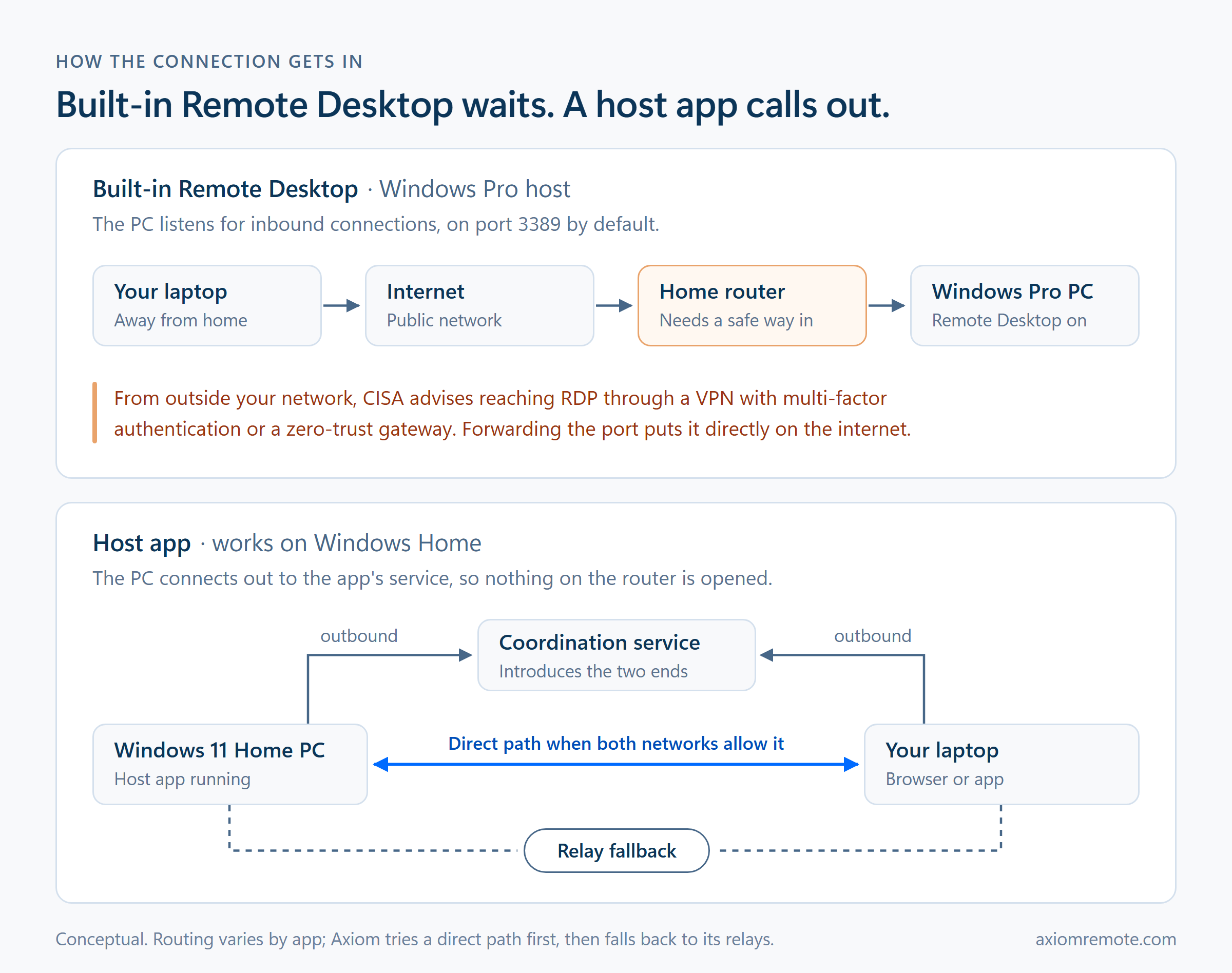
But upgrading only builds the door. It doesn't decide who can walk up to it. Remote Desktop waits for incoming connections on port 3389 by default, so reaching it from outside your home network means you need a safe path to that port. Forwarding it on your router is the shortcut that turns a front door into one facing the street, and we've written about why port forwarding is a risk on its own.
Pro is definitely the right answer if you're reaching the PC on the same network, your company already gives you a VPN, or you specifically want Microsoft's protocol. For one person trying to reach a home PC from a coffee shop, though, it's the start of a project, not the end of one.
Option 2: Use a remote-access app that brings its own host
The other route skips Microsoft's host entirely. Remote-access apps install their own host software, and that software runs on Home because it isn't the Remote Desktop feature Microsoft left out. Many of them also sidestep the router problem: the host connects out to the app's service instead of waiting for someone to knock, so there's no port to forward.
Chrome Remote Desktop is the easiest free place to start. You install it from Chrome, set a PIN, and reach the computer from Chrome on another device while signed in to your Google account. It's a good fit for light, occasional access. Quick Assist is already built into Windows and works on Home too, but it solves a different problem. Microsoft's Quick Assist documentation describes a helper who shares a security code and a person at the PC who enters it and selects Allow. That's great for fixing a parent's laptop while they're on the phone with you. It can't help you reach your own empty desk from another city.
Then there are dedicated tools, including Axiom. You install Axiom's host on the Windows PC you want to reach, and it gets a short numeric connect ID. From any modern browser, you enter that ID and an access password, and the connecting device doesn't need an app. Axiom tries a direct connection first and falls back to its relay servers when a network blocks the direct path, so there's no port forwarding or router setup involved. The honest catch: Axiom is in invite-only early access, so it's something to set up and test before you need it, not an emergency fix for tonight.
Should you unlock Remote Desktop on Home with a patch?
Search long enough and you'll find guides that patch Windows system files to switch the Remote Desktop host on in Home. I'd skip them. They work around a limit Microsoft put there on purpose, a Windows update can quietly break them, and they leave you with the exact same question as a Pro upgrade: how do you reach that port safely from outside? You'd take on more risk just to end up where the official route starts.
The same goes for forwarding port 3389 so the PC is reachable from anywhere. It feels like the last step. It's actually the step security guidance steers people away from. CISA's advice is that if RDP is needed, it should be reached through a VPN with multi-factor authentication or a zero-trust gateway instead of being exposed directly. That's the difference between a door at the end of a locked hallway and a door on the sidewalk.
Which option should you pick?
It comes down to where you'll be and who's sitting at the PC. If you're on the same network or already have a work VPN, upgrade the host to Pro and use Remote Desktop the way Microsoft intended. If someone is at the PC and just needs a hand, use Quick Assist and talk them through it. And if you want to reach your own Home PC from anywhere, with nobody there to click Allow, use a remote-access app with its own host, whether that's Chrome Remote Desktop, Axiom, or another tool you trust.
Whichever you pick, the PC still has to be awake and online when you connect. Before you rely on remote access, check the host's sleep settings and try a connection from a different network, like your phone's hotspot. Our guide to unattended remote access covers that prep, and the Wake-on-LAN guide covers what to do about a PC that's asleep.
What this looks like with Axiom
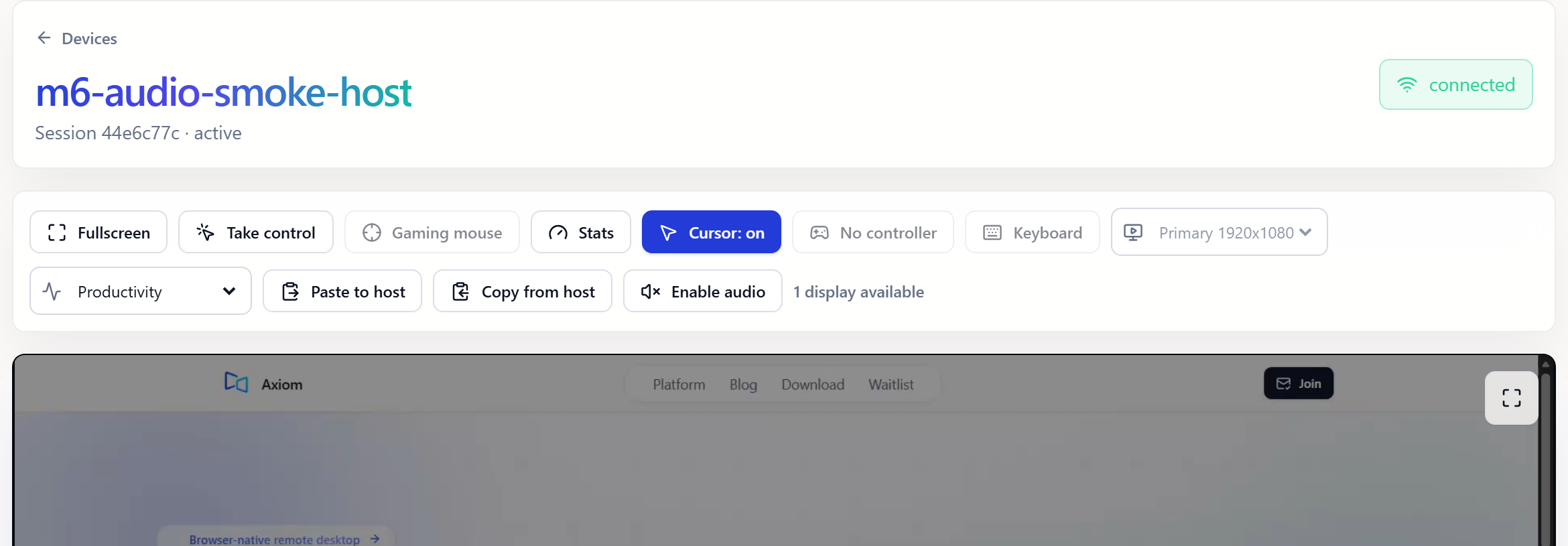
The capture below is an Axiom session in a browser: a connected host, controls for taking control, clipboard, audio, and stats, and the remote screen underneath. It's an existing product screenshot from a test host, not a capture from the Windows 11 Home PC at the top of this page, and the current interface may differ.
Windows 11 Home didn't come with a front door, and that's fine. You can pay Microsoft to install one, or you can let the PC make the call itself. Just don't prop a door open to the street because a forum post said it was quicker. Pick the route that fits where you'll be, test it before you leave, and your Home PC will be every bit as reachable as a Pro one.
Common questions
Can Windows 11 Home use Remote Desktop?
Partly. A Windows 11 Home PC can connect to another computer with Remote Desktop Connection or Windows App, but it can't host a Remote Desktop session. The PC you connect to must run a supported edition such as Windows 11 Pro or Enterprise.
How do I check which edition of Windows I have?
Open Settings, select System, then About. The Edition line under Windows specifications shows whether the PC runs Home or Pro.
Does the device I connect from need Windows Pro?
No. Microsoft says the device you connect from can run any edition of Windows, or a different operating system. Only the PC you connect to needs Pro.
Is Quick Assist the same as Remote Desktop?
No. Quick Assist is built for one-off help: the helper shares a security code, and the person at the PC enters it and approves the session. It can't be used to reach a PC when nobody is there.
Can I access a Windows 11 Home PC from a browser?
Yes, with a remote-access app that installs its own host, such as Chrome Remote Desktop or Axiom. Axiom connects from a modern browser with a connect ID and access password, and it is currently in invite-only early access.
Is it safe to forward port 3389 for Remote Desktop?
It isn't recommended. CISA advises that if RDP is needed, it should be reached through a VPN with multi-factor authentication or a zero-trust gateway rather than exposed directly to the internet.