
Wake-on-LAN for Remote Desktop: Wake a PC Remotely
Does your PC really need to run all day, every day, just in case you want it for twenty minutes? Wake-on-LAN is the answer to that question: it lets a sleeping computer wake up when it receives a special network message, so it can save power right up until the moment you connect. It's genuinely useful, but it's also one of the fussier things you can set up at home, with settings in three different places and a few cases where it simply won't work. Here's how it works, how to set it up on Windows, and how to decide whether it's worth it for you.
How does Wake-on-LAN work?
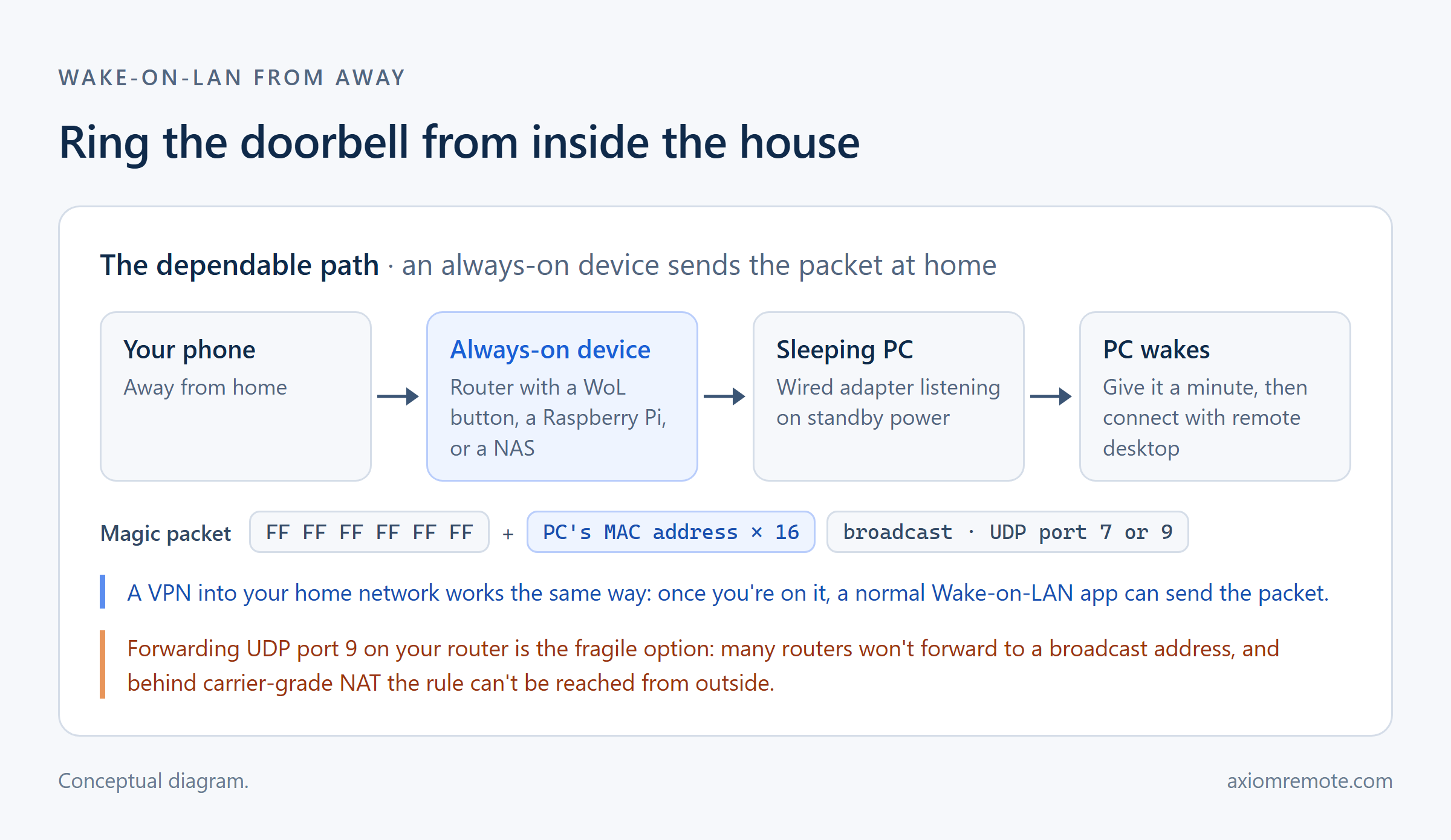
Wake-on-LAN works like a doorbell for a sleeping PC. Even while the computer sleeps, its network adapter keeps a little power and listens for one specific message, called a magic packet. The packet is simple: six bytes of FF followed by the adapter's MAC address repeated sixteen times, which makes it easy for the adapter to recognize and hard to send by accident. When the adapter hears its own address, it wakes the rest of the machine.
The packet is usually sent as a broadcast to UDP port 7 or 9 on your local network, and that detail explains most of what comes later. Broadcasts stay inside your network, and routers don't pass them in from the internet. This shows how Wake-on-LAN is really a home-network feature: waking a PC from somewhere else means finding a way to ring the doorbell from inside the house.
Which sleep states can Wake-on-LAN wake from?
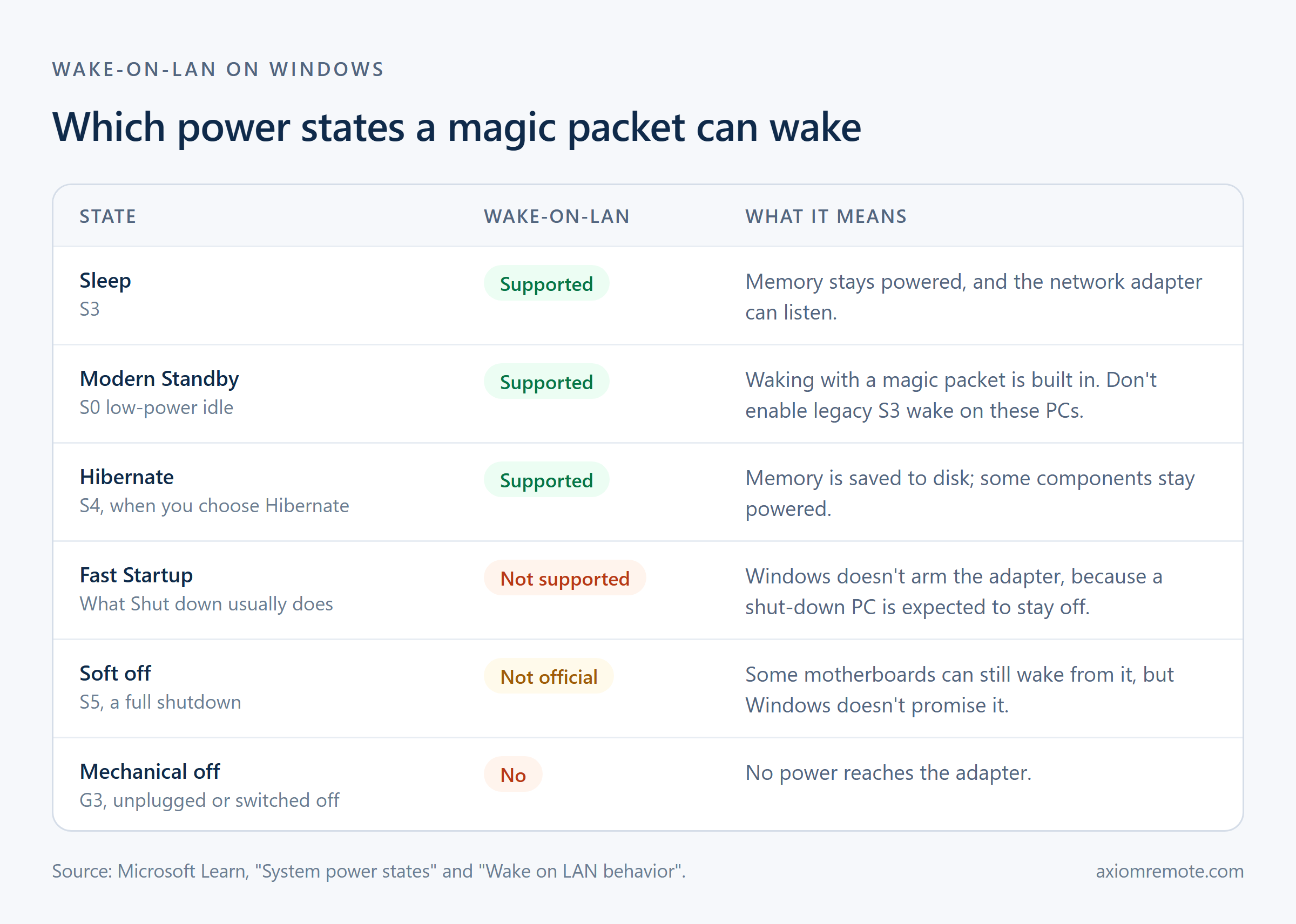
This is where a lot of Wake-on-LAN advice goes wrong. Windows has several power states, and Wake-on-LAN only works from some of them. Microsoft says it's supported from sleep (S3) and hibernate (S4), and not from Fast Startup or a full shutdown, which Windows calls soft off (S5) (Microsoft Learn). S5 isn't a deeper sleep. It's off.
The catch is that Shut down on a modern Windows PC normally means Fast Startup, a hybrid of shutting down and hibernating, and Microsoft's troubleshooting article is explicit that network adapters aren't armed for Wake-on-LAN in that state, because people expect a shut-down PC to stay off (Microsoft Learn). Some motherboards can still wake from a full shutdown on their own, but Windows doesn't promise it. The reliable plan is to let the PC sleep, not shut it down.
Newer laptops and some small PCs use Modern Standby instead of classic sleep. Microsoft says waking these with a magic packet is supported natively, and warns against turning on legacy sleep Wake-on-LAN on them because it can cause floods of network traffic.
How to set up Wake-on-LAN on Windows
There are three places to check, and all three have to agree. Start with the firmware: restart the PC, open the BIOS or UEFI setup (the key is often Delete or F2), and look under power management for an option like Wake on LAN or Power On by PCI-E. Some boards also have an energy-saving setting called ErP or EuP that cuts standby power. If it's on, the network adapter can't listen, so turn it off.
Next, Windows. Open Device Manager, expand Network adapters, open your wired adapter's Properties, and on the Power Management tab check Allow this device to wake the computer and Only allow a magic packet to wake the computer. On the Advanced tab, make sure Wake on Magic Packet is enabled. The names vary a little by adapter maker, but they're usually easy to spot.
Last, the network itself. Use a wired Ethernet connection for the PC you want to wake, because most Wi-Fi adapters can't listen for a magic packet while the PC sleeps, and give the PC a reserved address in your router so you always know where it is. Then test from another device on the same network with any Wake-on-LAN app: put the PC to sleep, send the packet, and watch it wake up.
How to wake your PC when you're away from home
Waking the PC from inside the house is easy. Waking it from somewhere else means getting a magic packet onto your home network, and there are three common ways to do it.
The first is a device at home that's always on. Some routers have a Wake-on-LAN button in their app or admin page, and a Raspberry Pi, a NAS, or any always-on computer can send the packet for you once you reach it. This is the most dependable option, because the packet starts inside your network, where it belongs. The second is a VPN into your home network: once your phone or laptop is on the VPN, it's effectively at home, and a normal Wake-on-LAN app works.
The third is port forwarding, a router rule that passes UDP port 9 from the internet into your network. It's the one most guides show, and it's the one I like least. Many routers won't forward to a broadcast address at all, it opens a door on your router just for a wake-up call, and if your provider uses carrier-grade NAT, no rule on your router can be reached from outside anyway. This shows how an always-on device earns its spot: it keeps working even when the path in from the internet doesn't.
Wake it, then connect
Wake-on-LAN only turns the PC on. You still need remote desktop software to use it, and you need to give the PC a minute to wake before you connect. That's where the job splits cleanly in two: Wake-on-LAN handles power, and your remote access tool handles the connection.
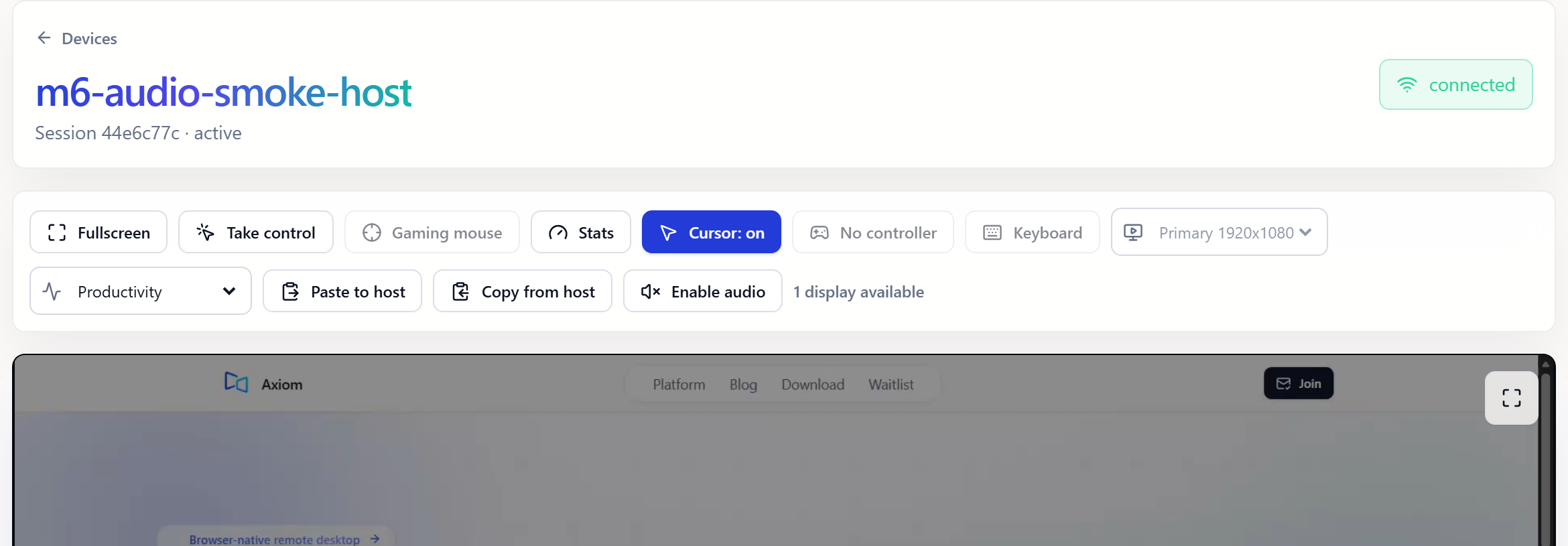
Axiom handles the second half. You install it once on the Windows PC, and once the PC is awake, you connect from any modern browser with its short connect ID and access password. Axiom doesn't send magic packets itself, so you'll still need one of the wake methods above, but the connection needs no port forwarding: Axiom tries a direct path first and falls back to its relay servers when a network blocks it. The capture below is a real Axiom session in a browser.
Is Wake-on-LAN worth it?
For a desktop you reach a few times a week, yes, as long as you send the packet from an always-on device at home and test the whole thing properly. For a PC you rely on every day, or one you need to reach from networks you don't control, the simpler answer is usually to leave it on with the screen off and skip sleep entirely, which we cover in the unattended remote access guide. Either way, the rule is the same as any remote setup: test it from outside your home before you actually need it. A PC that sleeps is nice. A PC that answers when you call is the whole point.
Common questions
Does Wake-on-LAN work if the PC is shut down?
Usually not on Windows. Microsoft says Wake-on-LAN works from sleep and hibernate, but not from Fast Startup or a full shutdown. Some motherboards can wake from a full shutdown anyway, but Windows doesn't guarantee it, so use sleep.
Does Wake-on-LAN work over Wi-Fi?
Rarely. Most Wi-Fi adapters can't listen for a magic packet while the PC sleeps. Use a wired Ethernet connection for the PC you want to wake.
Can I use Wake-on-LAN over the internet?
Yes, but not directly, because routers don't pass broadcasts in from the internet. The most reliable way is an always-on device at home, such as a router with a Wake-on-LAN feature or a small computer, that sends the packet for you. A VPN into your home network also works.
Is Wake-on-LAN safe?
The magic packet itself can only wake the PC; it can't run anything. The risk is in how you reach your network to send it, so avoid port forwarding if you can, and protect whatever remote access tool you use once the PC is awake.
Axiom
Once your PC is awake, Axiom makes getting on it simple.
Just because you've handled the Wake-on-LAN doesn't mean you need another headache with the connection. Once your computer is powered on, Axiom gives you a straightforward way to connect from any browser, no complex router setup needed for the remote session itself. We're in early access right now, and early testers get launch discounts; we haven't locked in the final pricing yet.