
How to Set Up Unattended Remote Access on Windows
What good is remote access if your PC is asleep, signed out, or stuck behind a restart the moment you need it? Unattended remote access means connecting to a computer with nobody sitting in front of it to click Allow, and honestly, the software is the easy part. The hard part is the PC itself: it has to stay on, come back after a restart, and stay locked down while you're gone. Get those right before you leave, and the connection works when you need it instead of failing at the worst possible time.
What is unattended remote access?
There are two kinds of remote access, and the difference is who's at the other end. Attended access is the help-desk kind: someone sits at the PC, reads you a code, and clicks Allow when you connect. Microsoft's Quick Assist works exactly this way, with the person at the PC entering a security code and approving the session (Microsoft Learn). That's great for fixing a parent's laptop while they're on the phone with you.
Unattended access is the other kind. You set the PC up once, give it a password, and after that you can connect whenever you want, whether the desk is empty or you're three time zones away. This shows how the real work moves from the moment you connect to the moment you set things up: if the PC isn't ready when you leave, nobody will be there to fix it for you.
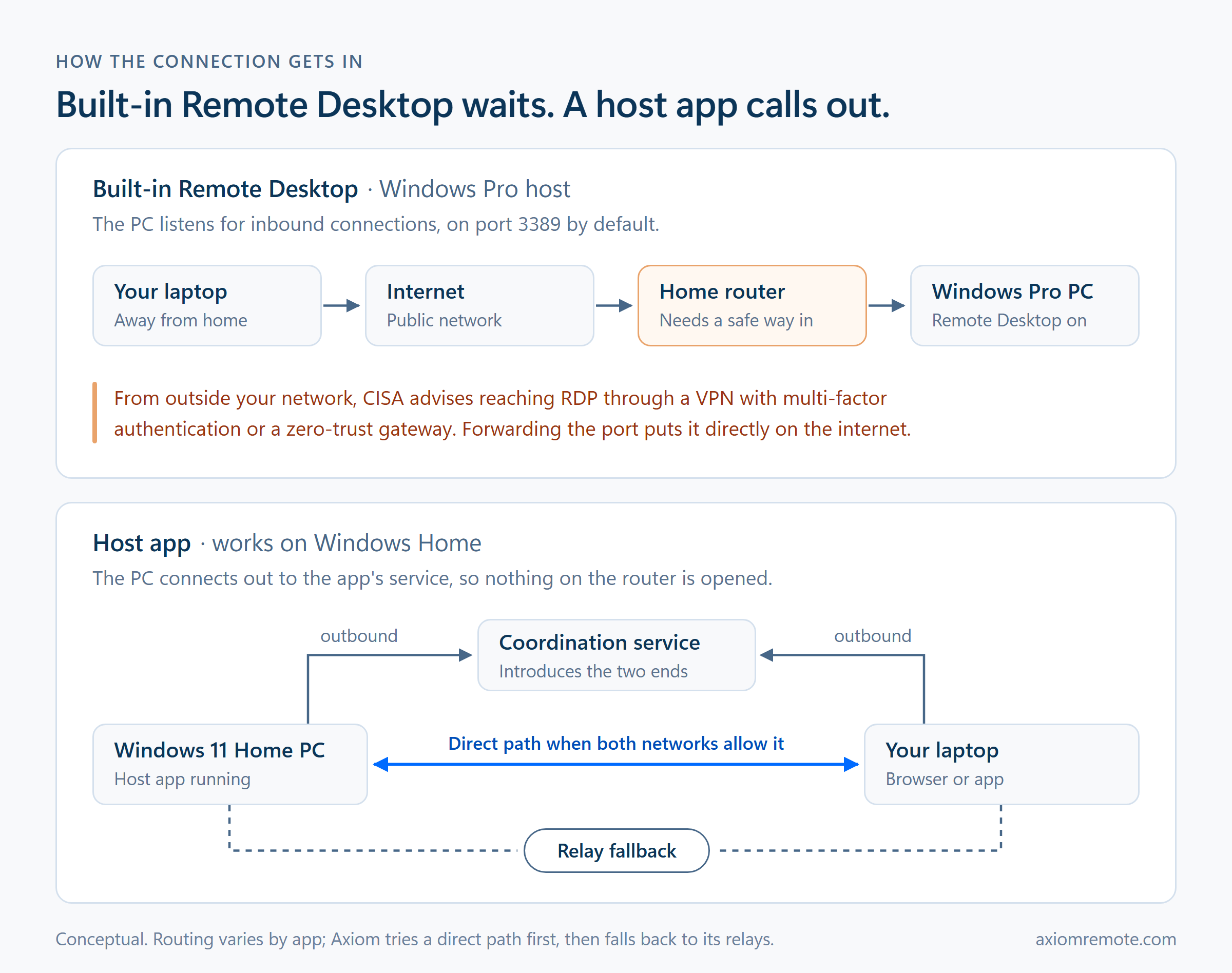
Nearly every unattended setup works the same way underneath. A small host app runs on the PC you want to reach, and you connect to it from another device with an ID and a password. Chrome Remote Desktop does it with a PIN, Microsoft's Remote Desktop does it on Pro editions of Windows (Home can't host it, which we cover in Remote Desktop on Windows 11 Home), and dedicated tools like Axiom do it with a short connect ID. The tool you pick matters less than the four checks below.
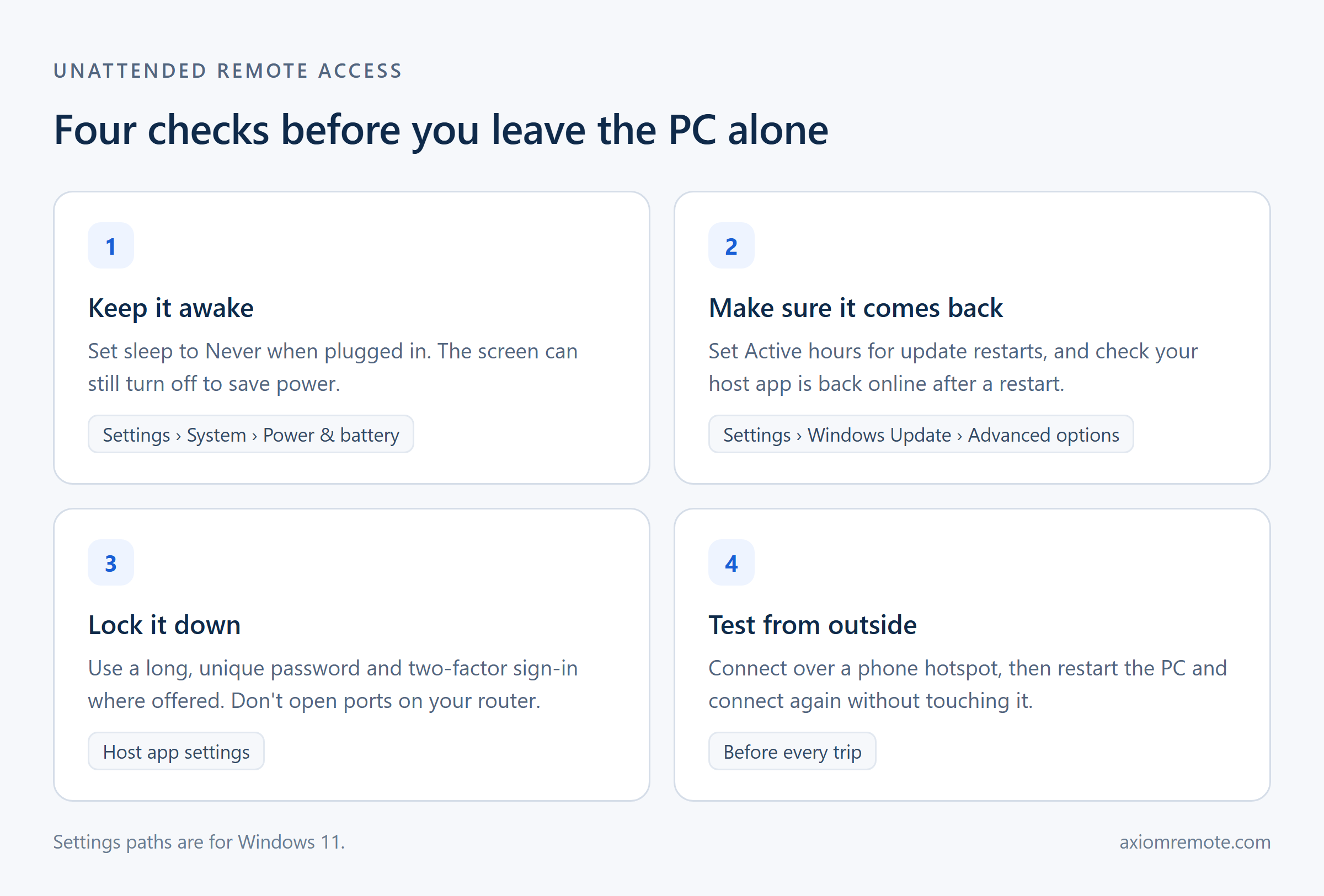
Step 1: Keep the PC awake
A sleeping PC is an unreachable PC, because the host app stops running the moment Windows goes to sleep. On Windows 11, open Settings, then System, then Power & battery, and under Screen, sleep, & hibernate timeouts, set the option for putting the device to sleep when plugged in to Never (Microsoft Support). Letting the screen turn off is fine, and it saves power, but sleep has to stay off.
If leaving a desktop on all day bothers you, Wake-on-LAN is the middle ground: the PC sleeps, and a special network message wakes it up before you connect. It works, but it has its own setup and its own catches, which we walk through in the Wake-on-LAN guide. For most people, the simplest reliable answer is a desktop that never sleeps with a screen that turns itself off.
One more setting lives in your motherboard's firmware rather than in Windows. Many boards have an option, usually called something like Restore on AC power loss, that turns the PC back on after a power cut. Without it, a flicker at home while you're away becomes a PC that stays off until someone presses the button.
If the PC does go to sleep, Axiom's dashboard has a Wake button. It works when another Axiom device on the same network is online, because that device sends the wake-up message on your behalf. That's a good reason to leave a second PC running, and the Wake-on-LAN guide covers what else has to be set up for it to work.
Step 2: Make sure it comes back after a restart
Windows restarts itself for updates, and that's where a lot of unattended setups quietly fail. You can steer when it happens: open Settings, then Windows Update, then Advanced options, and set Active hours so restarts land outside the hours you'll need the PC (Microsoft Support). Don't turn updates off to dodge restarts. A PC that's reachable from anywhere is exactly the PC that needs its security patches.
The bigger question is what happens after the restart. Some host apps run as a Windows service and come back online at the sign-in screen. Others only start once someone signs in to Windows, which means a restart leaves the PC offline until a person types a password. Check which kind yours is before you trust it for a week away.
Axiom covers this with an optional Unattended access setting in the desktop app. Turning it on installs a Windows service, and Windows asks for administrator approval once. After that, the PC stays reachable at the sign-in screen after a restart, and Windows administrator prompts on the secure desktop show up in your session instead of streaming as a black screen. A separate Keep awake switch stops the PC from going to sleep on its own. You connect from any device with a browser, wherever you are.
It has limits, and you should know them before a trip. Signing out of Windows ends a session that's in progress, and reconnecting lands you on the sign-in screen. The built-in terminal isn't available in unattended sessions. Keep awake blocks idle sleep only, so a PC you put to sleep by hand stays asleep. If you use a tool that only starts after someone signs in, Microsoft's free Autologon tool signs a user in when Windows starts. It's a real trade-off, though. Microsoft notes that anyone with administrator rights on that PC can retrieve the saved password, and anyone who can physically reach the machine gets a signed-in desktop, so only use it on a PC at home that you control.
Test whether a tool is really unattended
Every remote access tool calls itself unattended, and they don't all mean the same thing. Some only work while a user is signed in. Some can't show you the prompts Windows draws on its own secure desktop, like a UAC approval. You can find out which kind you have in a few minutes, with four tests you run yourself.
First, restart the PC and try to reach it without signing in to Windows. Second, lock the screen and reconnect. Third, do something that triggers a UAC prompt, like installing a program, and check whether you can see and approve it from the remote side. Fourth, sign out of Windows and see what you can still reach. A tool that passes the first and second is fine for most people. One that passes all four is a true unattended tool.
Do these at home, with the PC next to you, so a failure costs you a minute instead of a trip. And run them again after big Windows updates, because they're the changes most likely to break a host app.
Step 3: Lock it down
A PC you can reach from anywhere is a PC someone else will try to reach too, which is why the password is the whole front door. Give the host a long, unique password that you don't use anywhere else, and turn on two-factor sign-in for the account behind your remote access tool if it offers one. Keep Windows and the host app updated, for the same reason you shouldn't skip restarts.
The most important security decision is one you make by not doing something: don't open a port on your router to make the PC reachable. Forwarding a port puts a service on the open internet for anyone to find, and CISA's advice for Remote Desktop specifically is to reach it through a VPN with multi-factor authentication or a zero-trust gateway rather than exposing it directly (CISA). Host apps that connect out to their own service avoid the problem entirely, because nothing on your network waits for strangers to knock. We go deeper on this in why port forwarding is a risk.
Step 4: Test it before you leave
The only test that counts is a real one from outside your home. Before a trip, connect a laptop to your phone's hotspot and reach your PC from there. That checks the whole path at once: the host is running, the password works, and the connection gets through a network that isn't yours. If your internet provider uses carrier-grade NAT, this is also where you'll find out whether your tool can still connect.
Then test the failure you're most worried about. Restart the PC and check that you can reach it again without touching it. Leave it alone for longer than its old sleep timer and try again. Every problem you find at home is a problem you don't find from an airport.
What this looks like with Axiom
You install Axiom's host on the Windows PC, and it gets a short numeric connect ID. From any modern browser, you enter that ID and the access password, and the device in your hands doesn't need an app. Axiom tries a direct connection first and falls back to its relay servers when a network blocks the direct path, so there's no port forwarding or router setup involved, and sessions are encrypted either way.
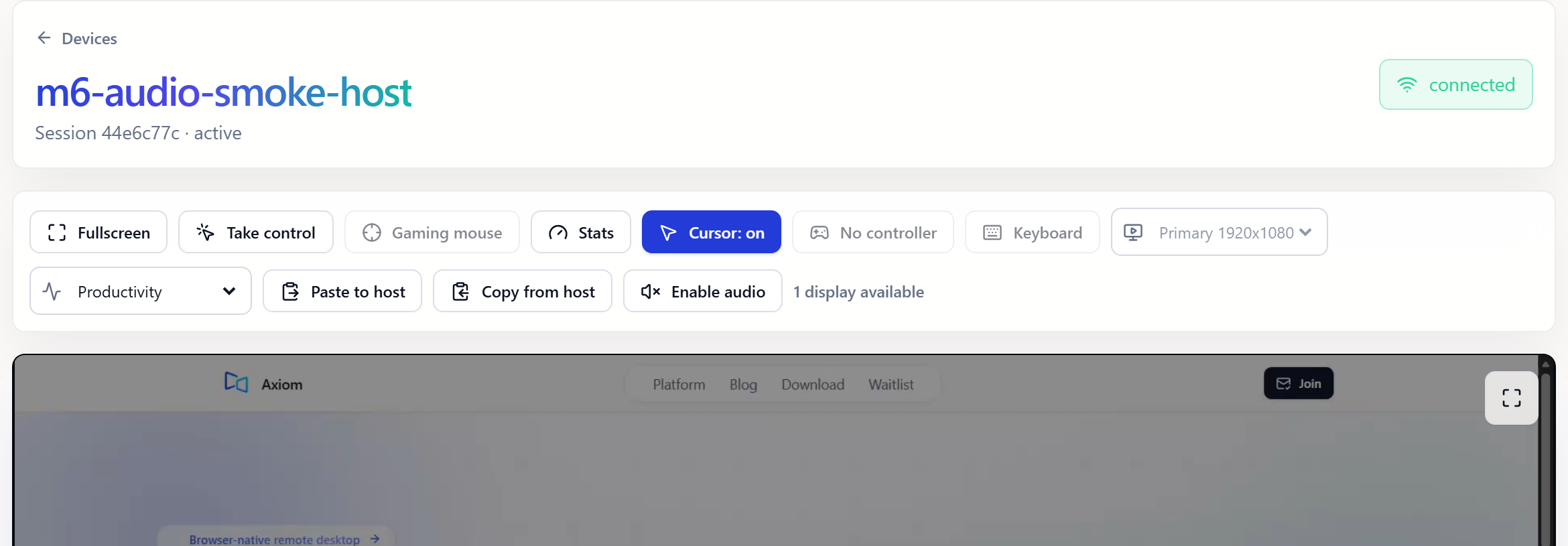
The capture below is a real Axiom session in a browser, with the controls you'd use once you're in: take control, clipboard, audio, stats, and display selection. Keep the two honest catches in mind, the sign-in requirement from step 2 and the fact that Axiom is in invite-only early access, and set it up well before the trip you need it for. Unattended access isn't really about the software you pick. It's about leaving behind a PC that's ready for you.
Common questions
What is the difference between attended and unattended remote access?
Attended access needs someone at the PC to approve each session, the way Quick Assist works. Unattended access is set up once with a password, so you can connect when nobody is there.
Do I need Windows Pro for unattended remote access?
Only for Microsoft's built-in Remote Desktop, which needs Pro or Enterprise on the PC you connect to. Host apps such as Chrome Remote Desktop or Axiom run on Windows Home too.
Why can't I reach my PC after it restarts?
Usually it's asleep, or your host app only runs after someone signs in to Windows. Check your sleep settings and whether your tool runs as a service that starts before sign-in. With Axiom, turn on Unattended access in the desktop app so the PC stays reachable at the sign-in screen.
Do I need to set up port forwarding for unattended access?
Not with host apps that connect out to their own service, such as Chrome Remote Desktop or Axiom. Exposing Remote Desktop through a forwarded port is exactly what CISA's guidance warns against.
Can I connect to my PC at the Windows sign-in screen?
Only if the host app runs as a Windows service, because a normal app doesn't start until someone signs in. Axiom's Unattended access setting installs that service, so you can reach the sign-in screen and see Windows administrator prompts. Test it by restarting the PC and reconnecting without signing in.
How do I keep my PC awake for remote access?
On Windows 11, set the plugged-in sleep timer to Never under Settings, System, Power & battery. Letting the screen turn off is fine. Also turn on the Restore on AC power loss option in your motherboard firmware if it has one, so a power cut doesn't leave the PC off. Axiom's Keep awake switch blocks idle sleep too, but not sleep you start by hand.
Is unattended remote access safe?
It can be, if you treat the password as the front door. Use a long, unique password, turn on two-factor sign-in for the account behind your tool if it offers it, keep Windows and the host app updated, and never open a port on your router to make the PC reachable. Host apps that connect out to their own service avoid that last risk entirely.
Axiom
Ready to set up unattended access with a simple, browser-based tool?
Axiom gives you unattended remote access for Windows PCs: an optional service keeps the PC reachable at the sign-in screen, and you connect from any device with a browser, with no client app. Sign up for early access and see what it can do.